Adding New Managers
Tracknow users can be divided into two main groups: Affiliates and Managers.
Each group has its own login page. Managers log in to the Tracknow Admin Portal, while Affiliates log in to the Tracknow Affiliate Portal.
You can add multiple members of your team as Managers in Tracknow and configure their permissions according to their specific roles. Each manager will have their own login credentials, and their access to pages and actions will be limited based on the permissions assigned to them.
Adding a New Manager
Navigate to Settings → User Management → Add User Manager
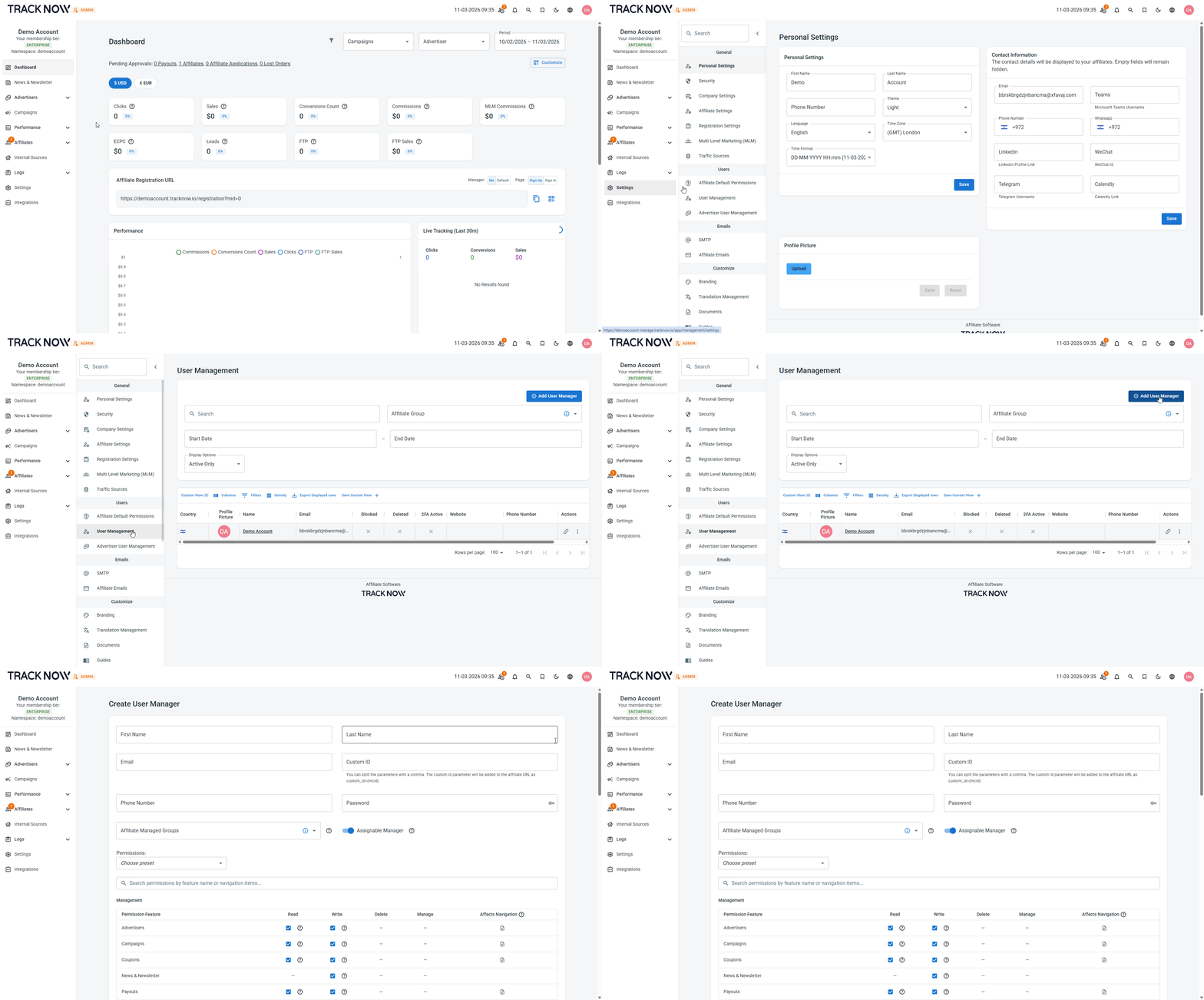
Fill out the user's details.
| Field | Mandatory | Description |
|---|---|---|
| First Name | true | The user's first name |
| Last Name | true | The user's last name |
| true | The user's email address used to log in to Tracknow | |
| Custom ID | false | You can set a custom value unique to this user, which can be passed as a macro to a landing page |
| Phone Number | false | The user's phone number |
| Password | true | The user's password |
| Affiliate Managed Groups | false | If the role of this user is to manage affiliates, you can assign specific affiliate groups to this manager |
| Assignable Manager | false | Toggle on if this user’s role includes managing affiliates; otherwise, toggle off |
Manager Permission Presets
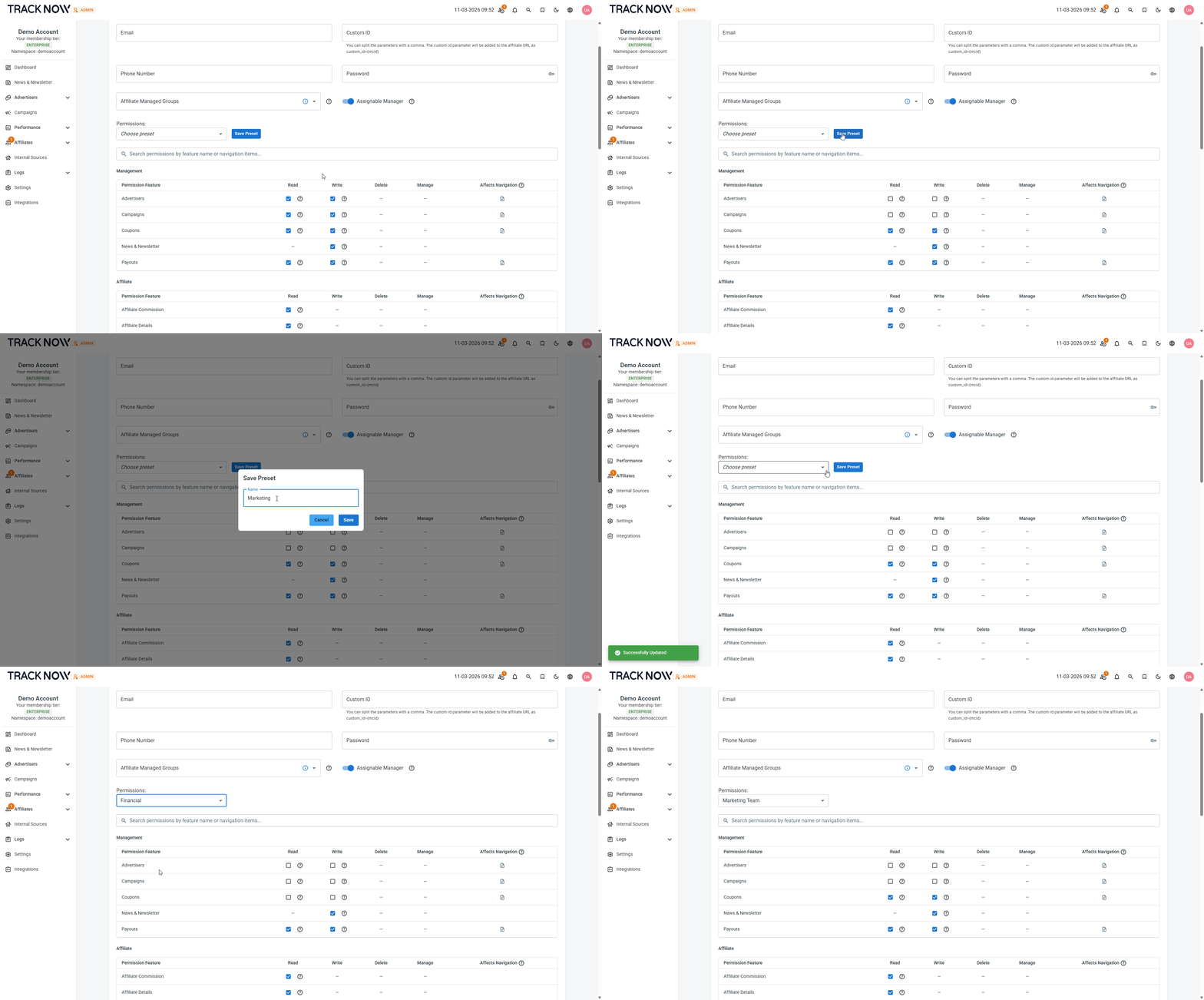
When adding users with different roles, you can create permission presets and save them for future use, making it easy to assign the same permissions when adding new team members with similar roles.
When configuring permissions for a specific role for the first time, adjust the permissions for the relevant user. A Save Preset button will then appear next to the Permissions selection box.
Click this button to save the preset once the permissions have been configured.
Emailing the New User his Credentials
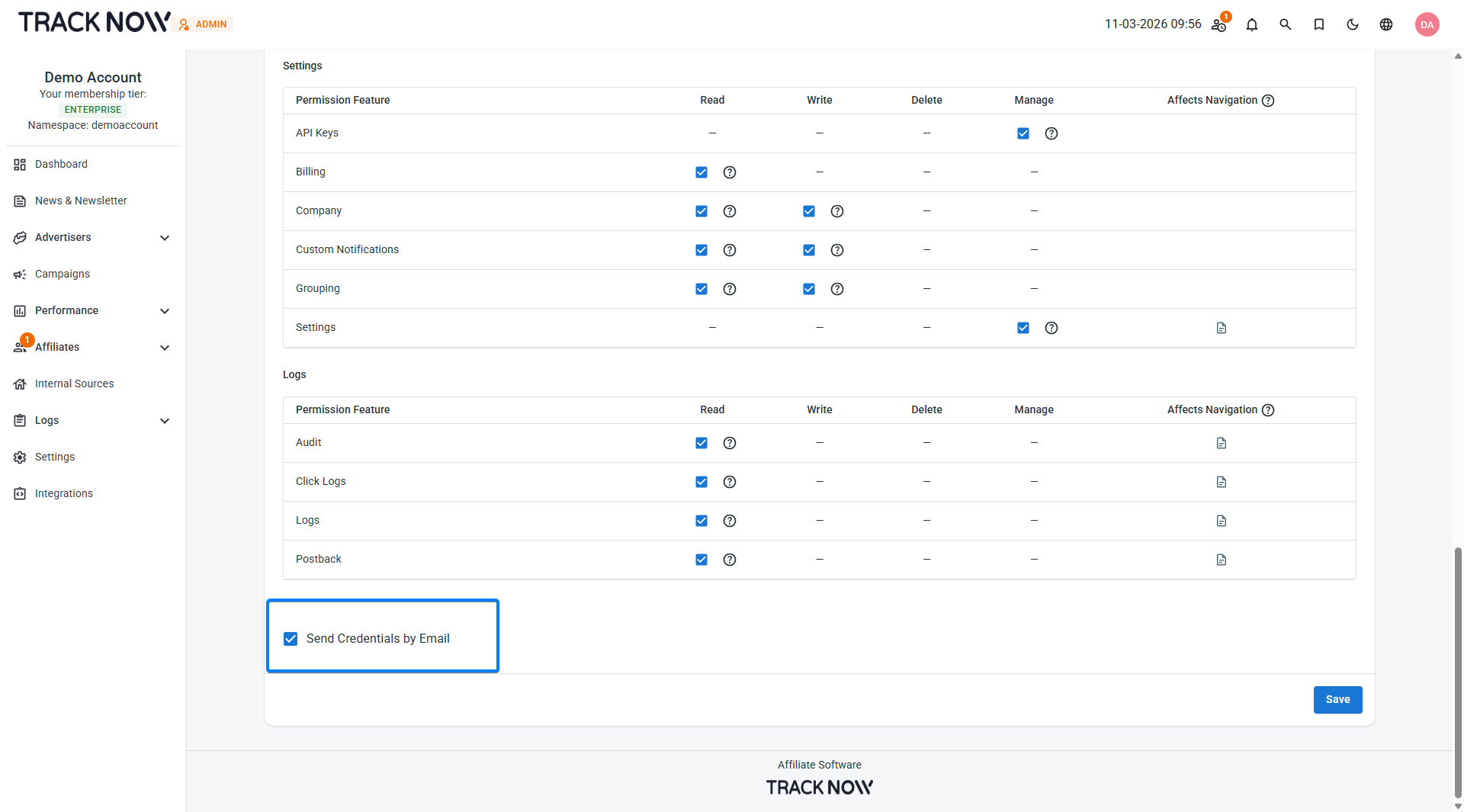
Once the new user's details are filled in and permissions are configured, you can check the Send Credentials by Email checkbox below the Permissions section. This will send the login credentials to the email address provided for the user.