# Shopify Integration
Tracknow integrates with Shopify stores to automatically transmit data for completed purchases into your Tracknow dashboard. This enables accurate tracking and attribution of purchases made by customers referred by your affiliates.
***
### Methods of Integration
There are two supported methods for integrating Tracknow with a Shopify store:
{% columns %}
{% column %}
**Tracknow Plugin**
Tracknow provides a Shopify app that can be installed on a Shopify store to enable purchase tracking
{% endcolumn %}
{% column %}
**Webhooks**
Implement the required scripts and configure Shopify webhooks to enable purchase tracking
{% endcolumn %}
{% endcolumns %}
Plugin
Webhooks
Simple installation process
More manual and technical implementation
Higher chance of missing some purchases due to Shopify privacy limitations
Lower chance of missing some purchases due to Shopify privacy limitations
More control over what purchases will be tracked
All purchases are tracked (filtration is handled on Tracknow side)
Only relevant purchase details are sent to Tracknow
The entire order payload is sent to Tracknow
***
### Prerequisites
Both integration methods require you to enable passing our unique affiliate identifier `click_id` to your landing page.\
\
For instructions, click [here](https://docs.tracknow.io/integrations/passing-click_id-to-a-landing-page).
***
### Plugin Integration
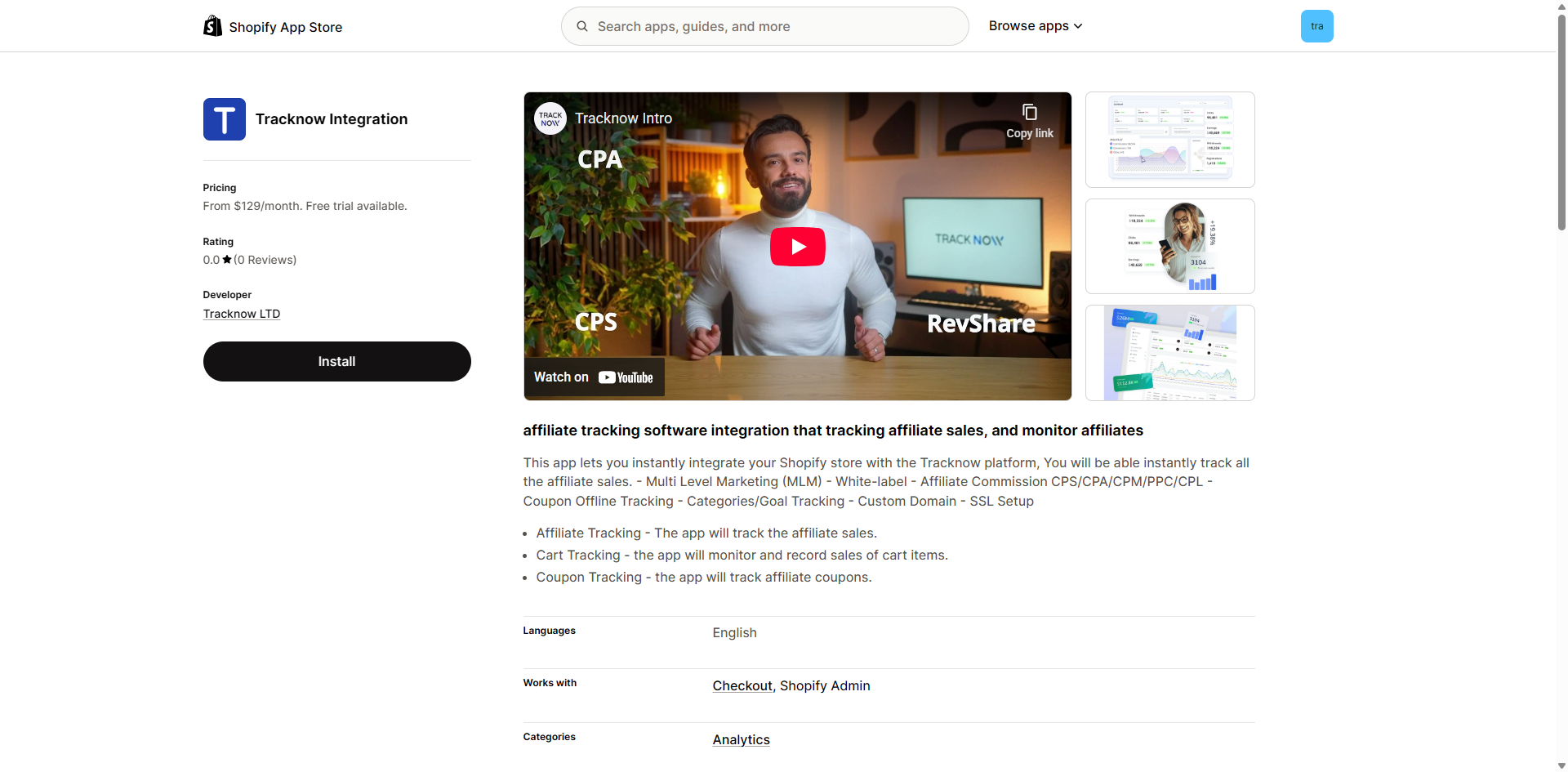
Login to the Shopify admin dashboard → **Settings** → **Apps** → **Shopify App Store** → Search for the [**Tracknow Integration**](https://apps.shopify.com/tracknow-affiliate-software) app → Install the app
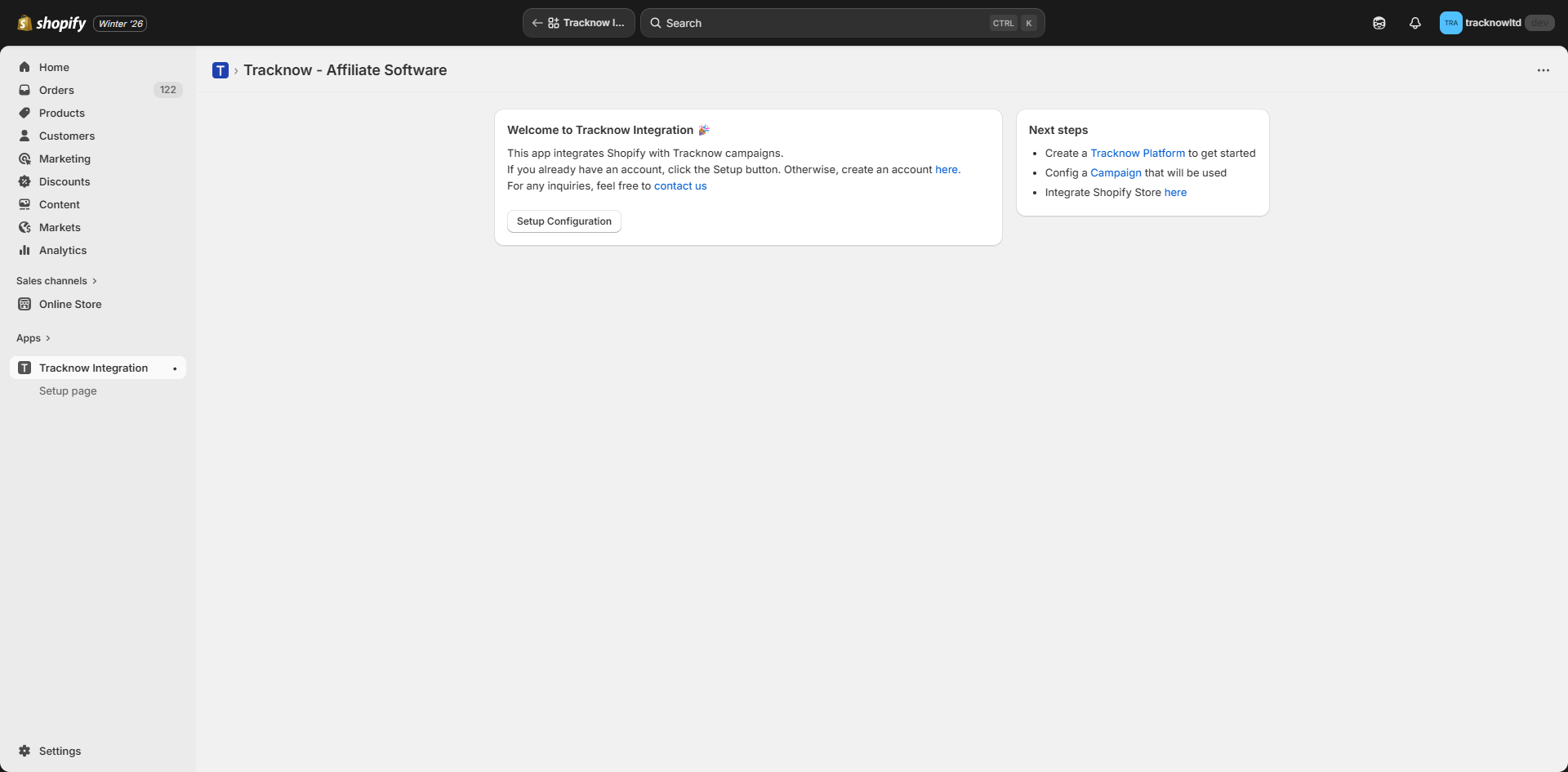
Navigate back to the Shopify dashboard → Open the **Tracknow Integration** app → **Setup Configuration**
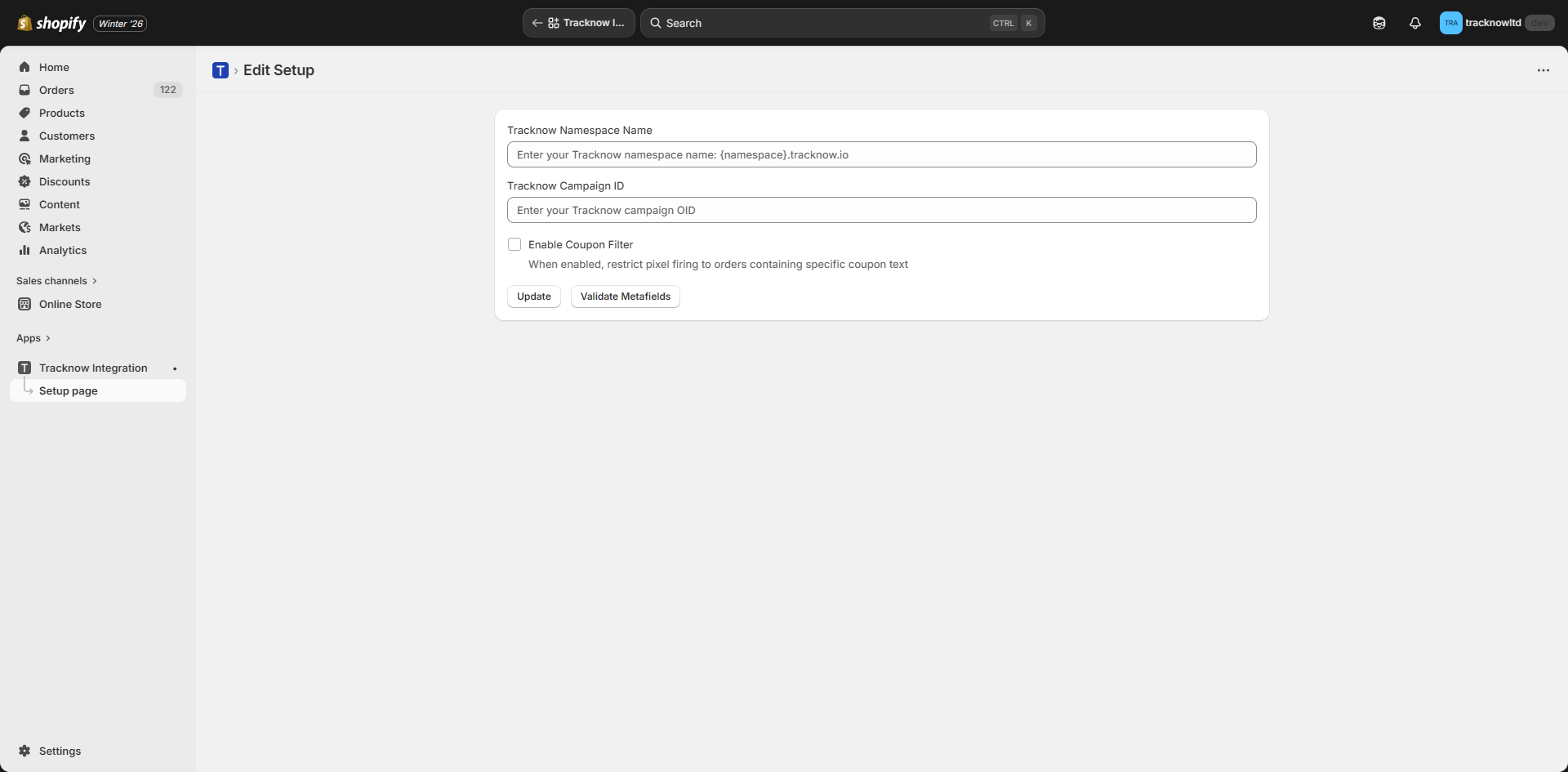
Fill out the configuration form → **Update**
Field
Description
Tracknow Namespace Name
Enter the Tracknow namespace to which data should be sent. This value is available in the Tracknow dashboard main menu.
Tracknow Campaign ID
Enter the Tracknow Camapign ID to which data should be sent
Enable Coupon Filter
Enter a value to limit tracking to orders that used a coupon code containing the specified string. Orders without a coupon code will still be tracked if the customer has a Tracknow referral identifier cookie.
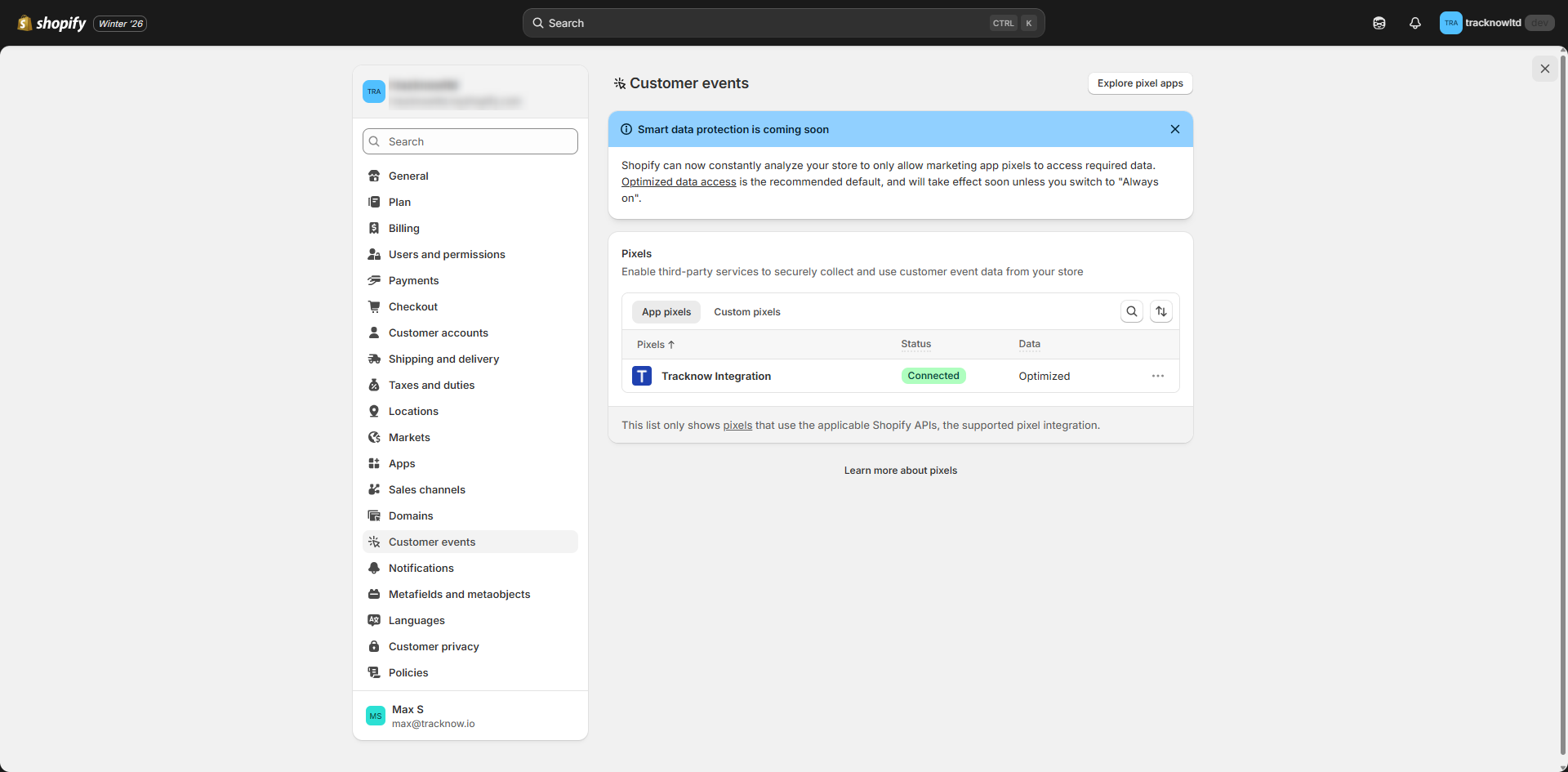
Navigate to **Settings** → **Customer Events** → Confirm that the plugin status is **Connected**
***
### Webhook Integration
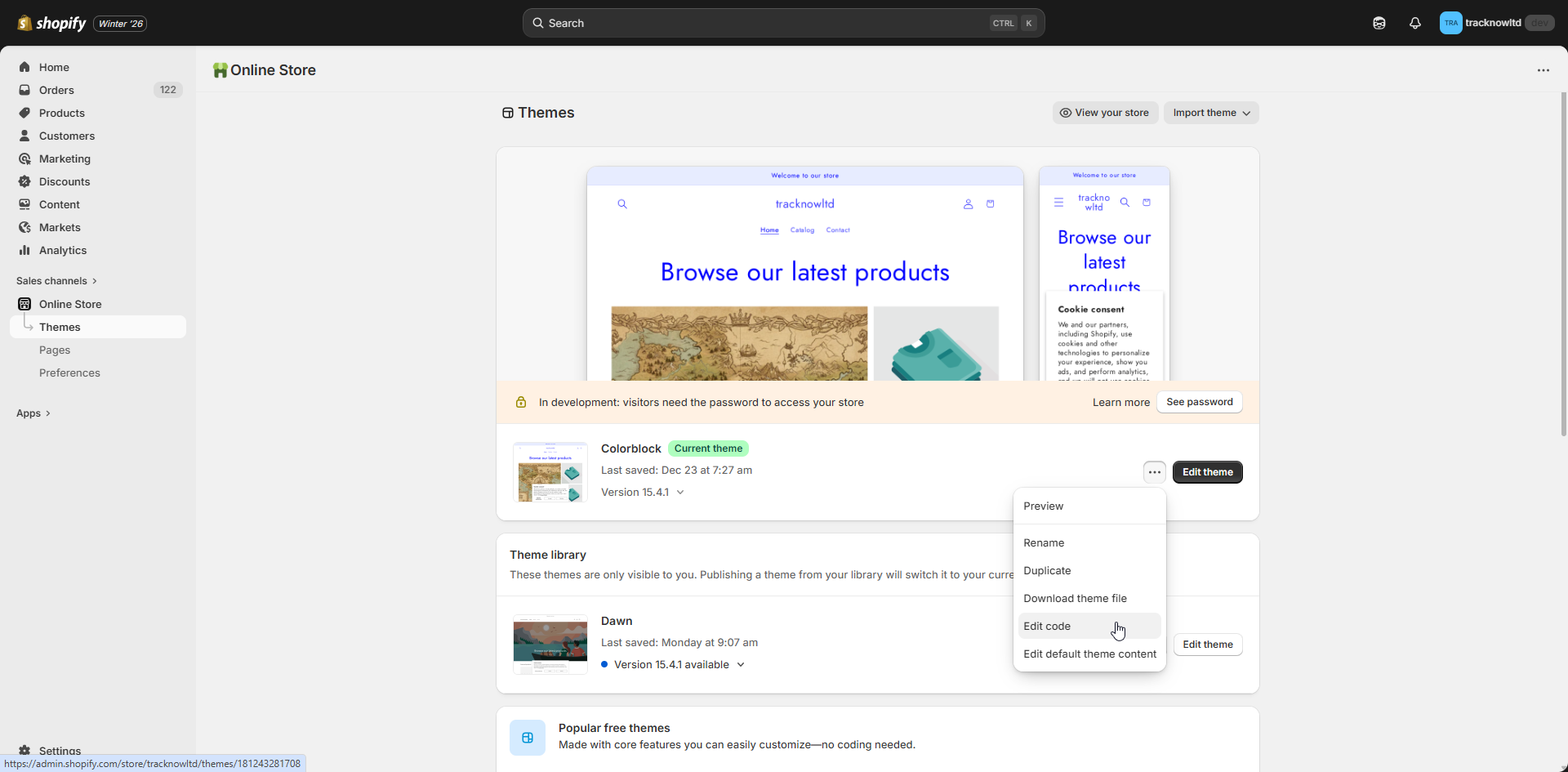
Login to the Shopify admin dashboard → **Online Store** → **Themes** → Three-dot icon next to your **Current Theme** → **Edit Code**
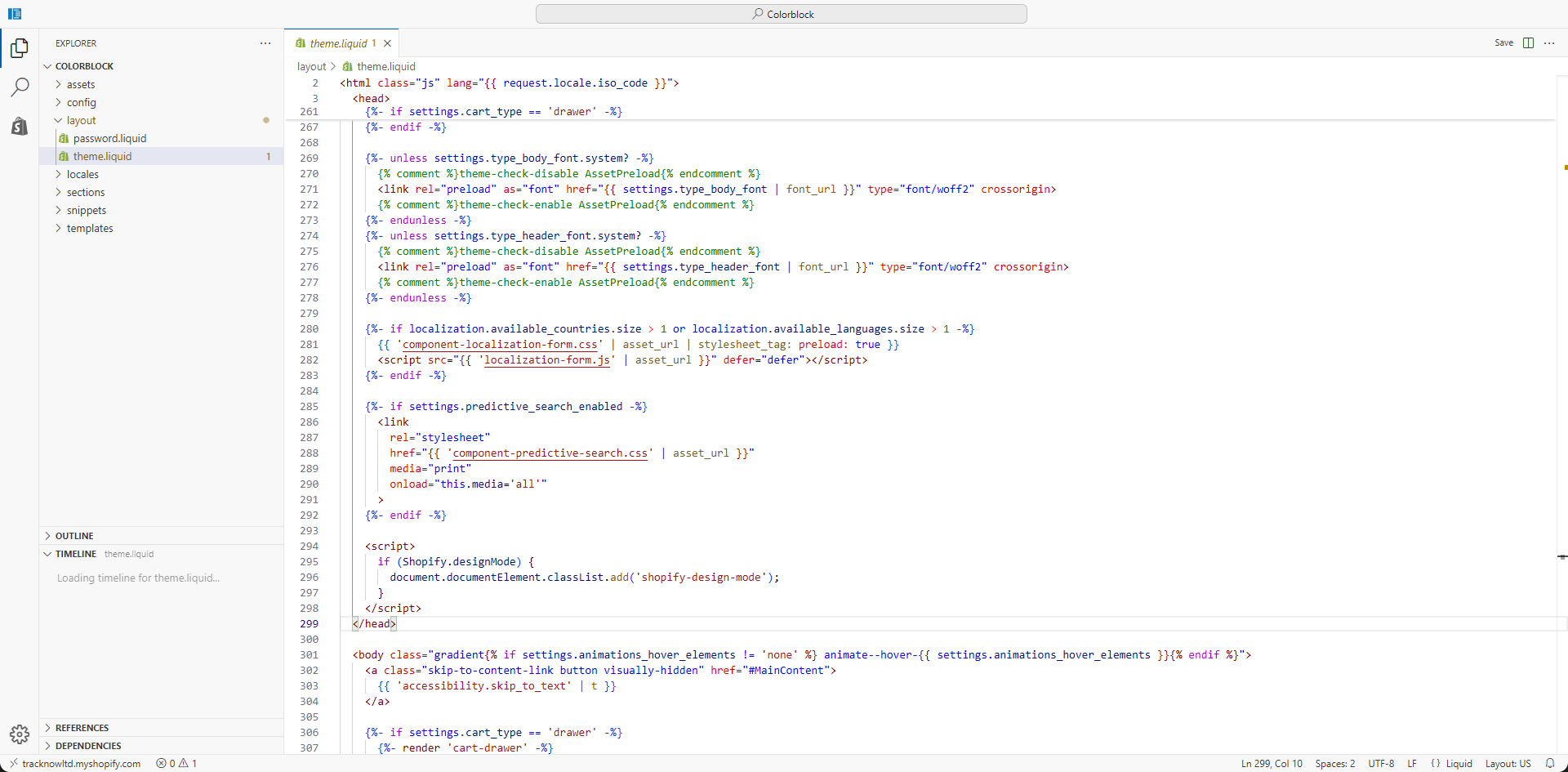
Expand the **layout** tab in the file explorer → Select the **theme.liquid** file
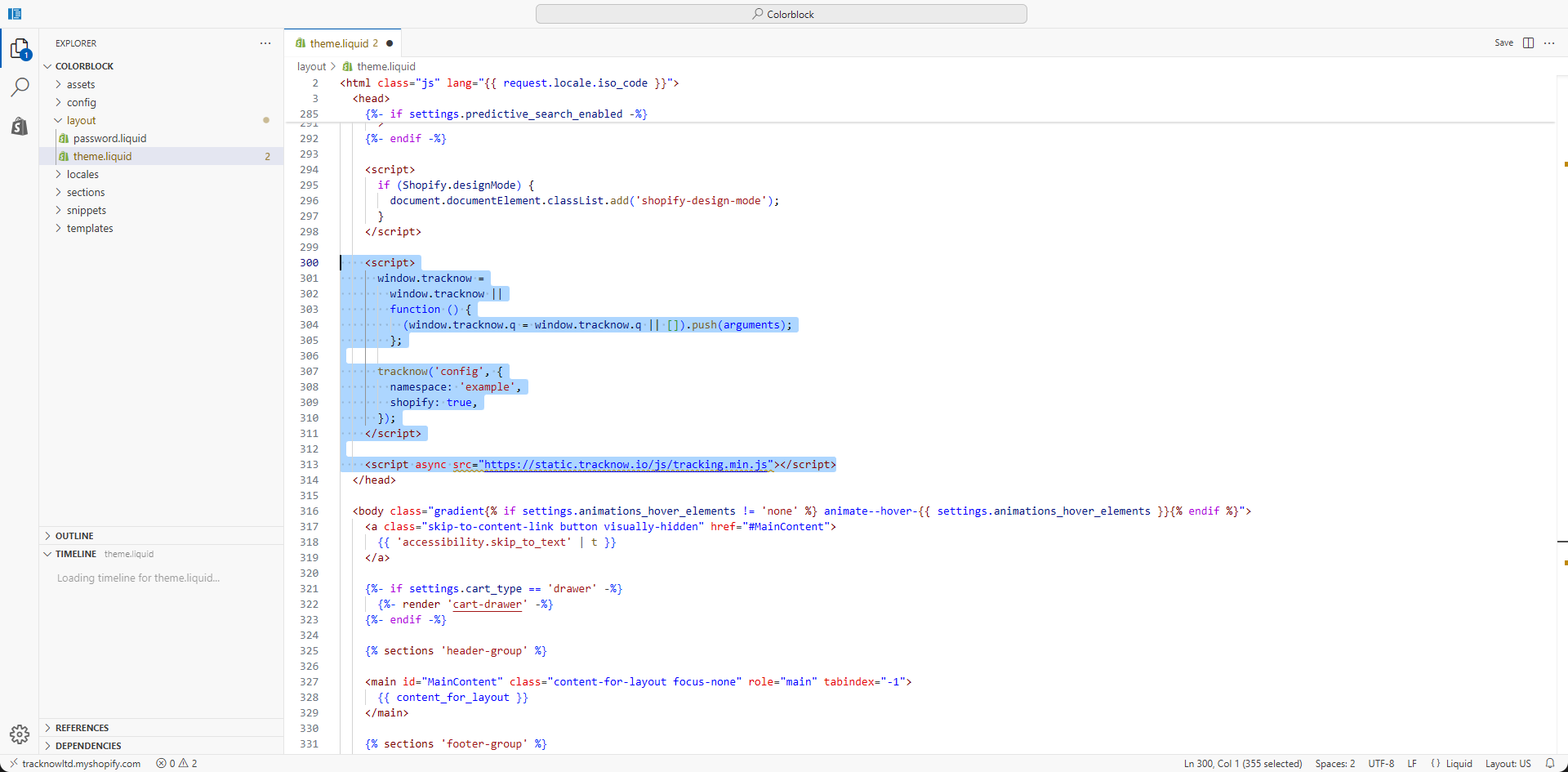
Locate the \ section closing tag → Insert the following script into the \ section of the page, immediately before the closing \ tag → **Save**
{% hint style="info" %}
Replace the **{REPLACE WITH TRACKNOW NAMESAPCE}** placeholder with your actual Tracknow namespace before pasting this script into the **theme.liquid** file
{% endhint %}
This script loads the Tracknow JavaScript library that handles storing the Tracknow referral identifier (click\_id) in the customer’s browser.
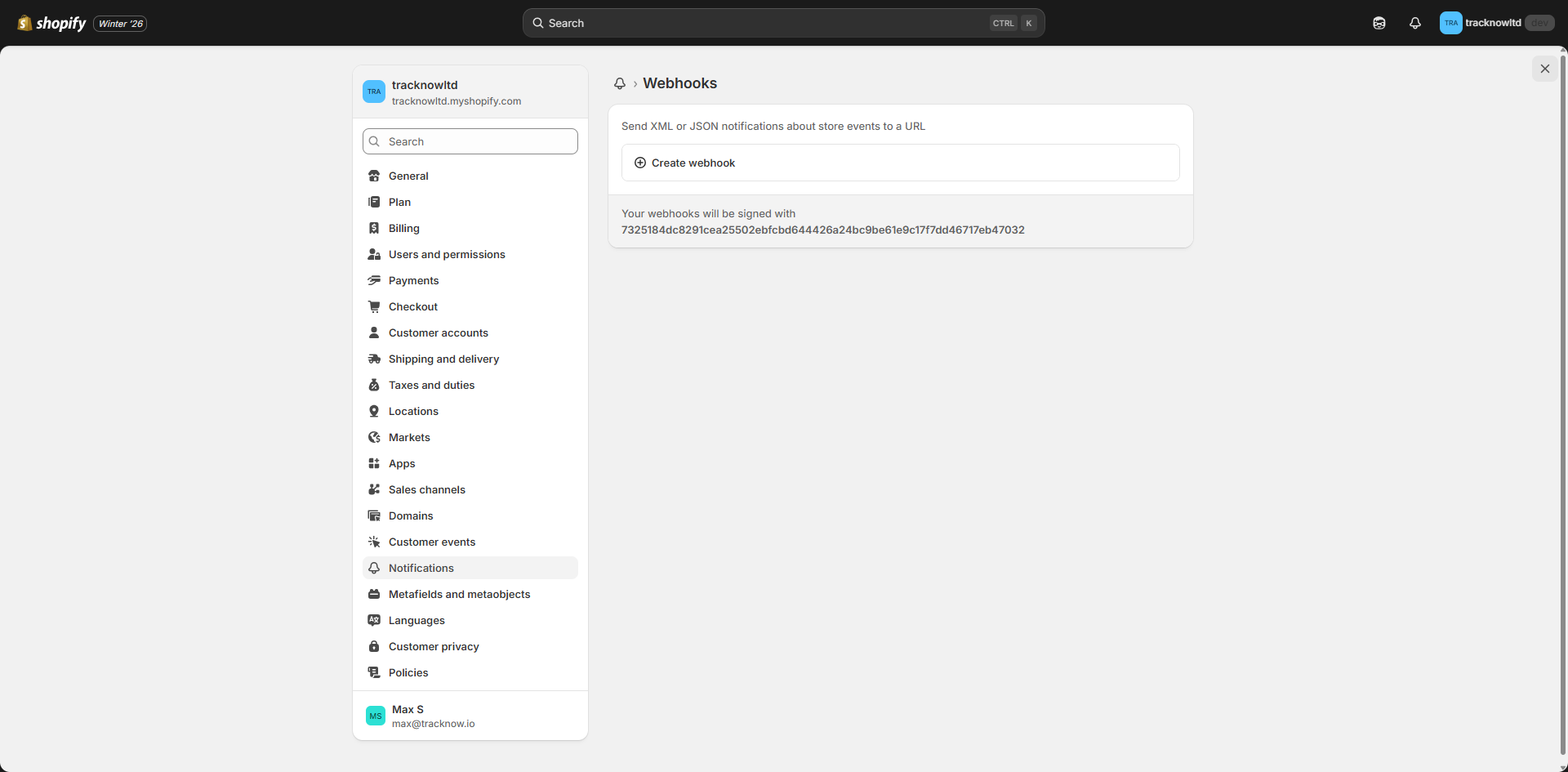
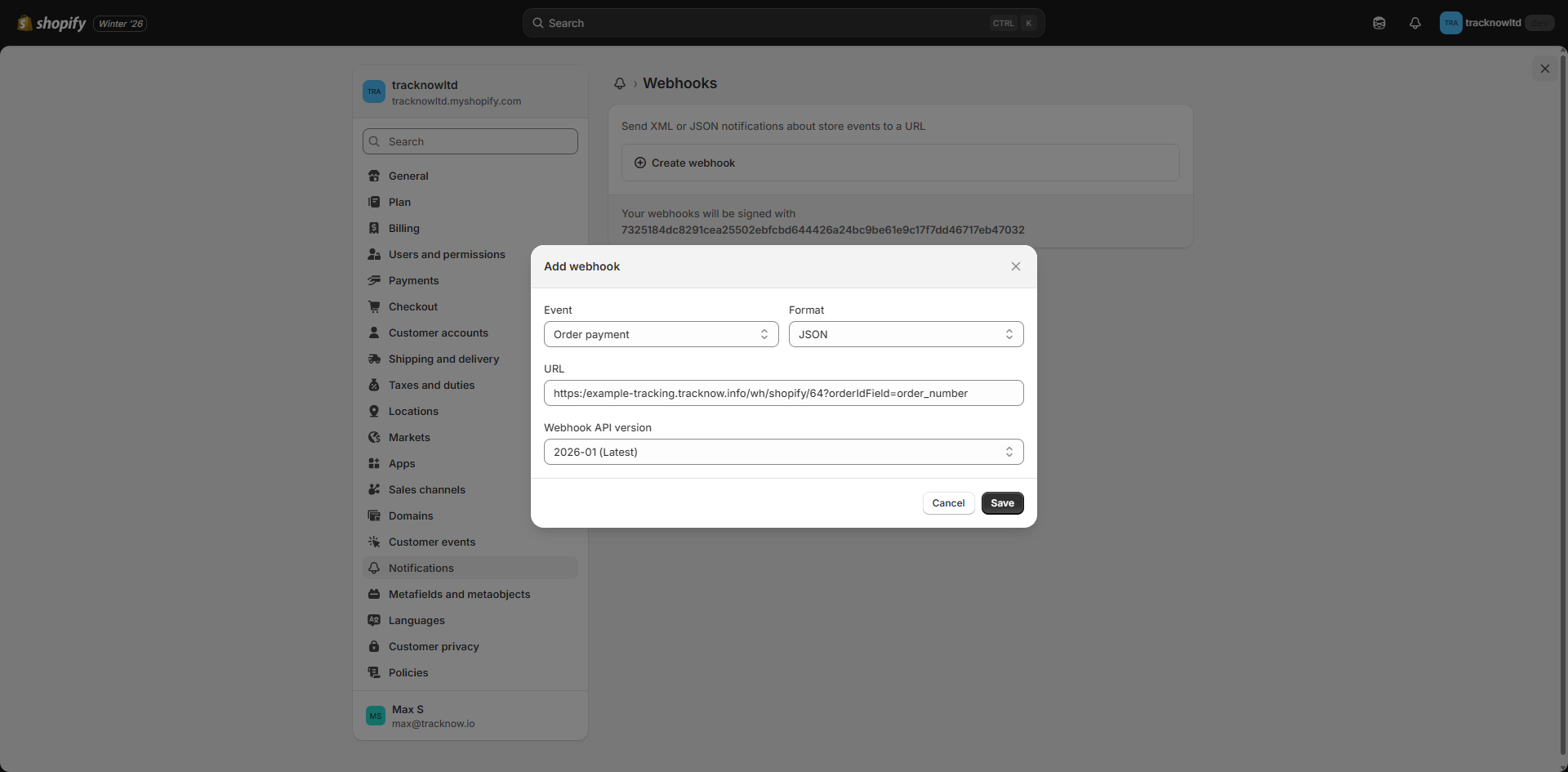
Navigate to **Settings** → **Notifications** → **Webhooks** → **Create Webhook**
Configure the webhook using the following settings → **Save**
{% hint style="info" %}
Replace the **{namespace}** placeholder with your actual Tracknow namespace before pasting this URL\
Replace the **{campaignId}** placeholder with your actual Tracknow campaign ID before pasting this URL
{% endhint %}
***
### Important Notes
* Ensure that the Shopify store does not use both integration methods simultaneously, as this may result in tracking issues and duplicate order events
* When switching between integration methods, fully disable the existing integration before enabling the new one
[^1]: