# Passing click\_id to a Landing Page
Each time someone clicks on an affiliate's tracking URL, that click is logged by our system. Click records hold information like:
1. The affiliate whose link was clicked
2. The campaign that the link is associated with
3. Basic metadata about the client (IP address and user agent)
**Every click record has a click ID**. This parameter is essential for ensuring reliable tracking.
When a client clicks an affiliate link, they are redirected to your chosen landing page. You can enable passing the client’s click\_id in the URL so that when they complete a purchase or another tracked action, this click\_id is sent along with the purchase details to your Tracknow dashboard. This allows the system to accurately attribute the purchase to the correct affiliate.
Think of it like a client visiting a store after being recommended by an affiliate. When they walk in, they are wearing a sticker with the affiliate’s name. When the client makes a purchase, the seller checks the sticker to see which affiliate referred them and credits that affiliate accordingly.
***
### Set Up
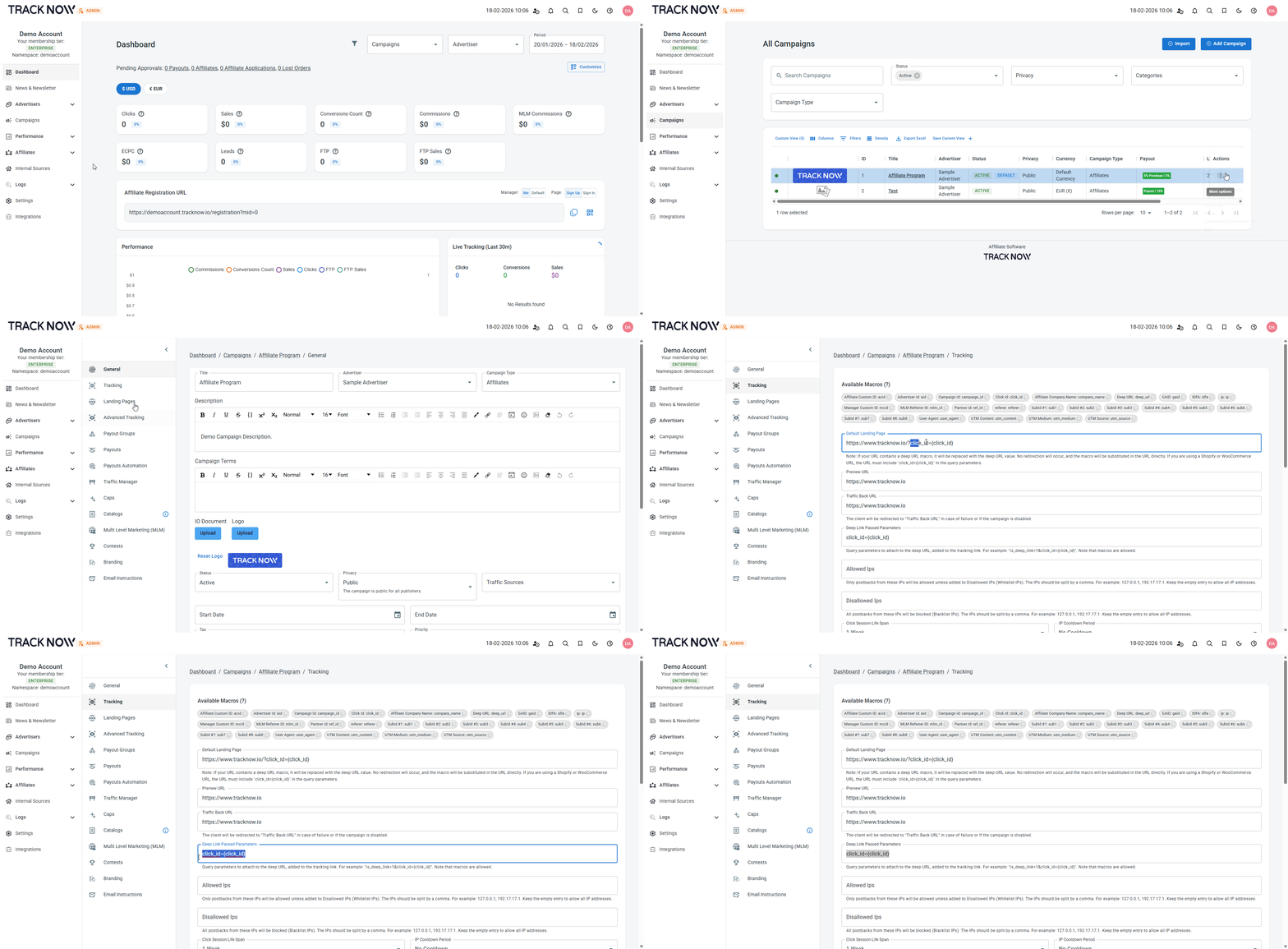
Navigate to **Campaigns** → Locate the relevant campaign → click the three-dot icon under the **Actions** column → **Edit** → **Tracking** tab → Add the click\_id parameter key and macro to the **Default Landing Page** URL and to the **Deep Link Passed Parameters** field
Now, each time a client clicks an affiliate link, he will be directed to your landing page with his click\_id in the URL
***
### Storing the `click_id` in a Cookie
After the `click_id` is passed to your website, you must store it in a browser cookie to ensure it persists while the user navigates across different pages. This prevents the value from being lost during the session and ensures it remains available when the client completes the tracked event.
You can use the following script template to store the `click_id` in a cookie:
```javascript
```
{% hint style="info" %}
Please ensure this script is implemented in the \ section of your website so that it is loaded on all pages. This ensures the script remains effective even if the landing page changes, and no code adjustments will be required.
{% endhint %}