> For the complete documentation index, see [llms.txt](https://docs.tracknow.io/llms.txt). Markdown versions of documentation pages are available by appending `.md` to page URLs; this page is available as [Markdown](https://docs.tracknow.io/features/smart-links.md).

# Smart Links

Smart Links allow you to create a single affiliate link that can redirect referrals to multiple landing pages across different campaigns included in the Smart Link configuration.

You can control how traffic is distributed between the selected campaigns by assigning each one a **weight**.

* **Equal Weights** – All selected campaigns have the same priority, so each click is randomly distributed between them with an equal probability.
* **Custom Weights** – Assign a higher weight to specific campaigns to increase the likelihood that users will be redirected to those campaigns. The higher the weight, the greater the share of traffic that campaign will receive.

***

### Creating a Smart Link

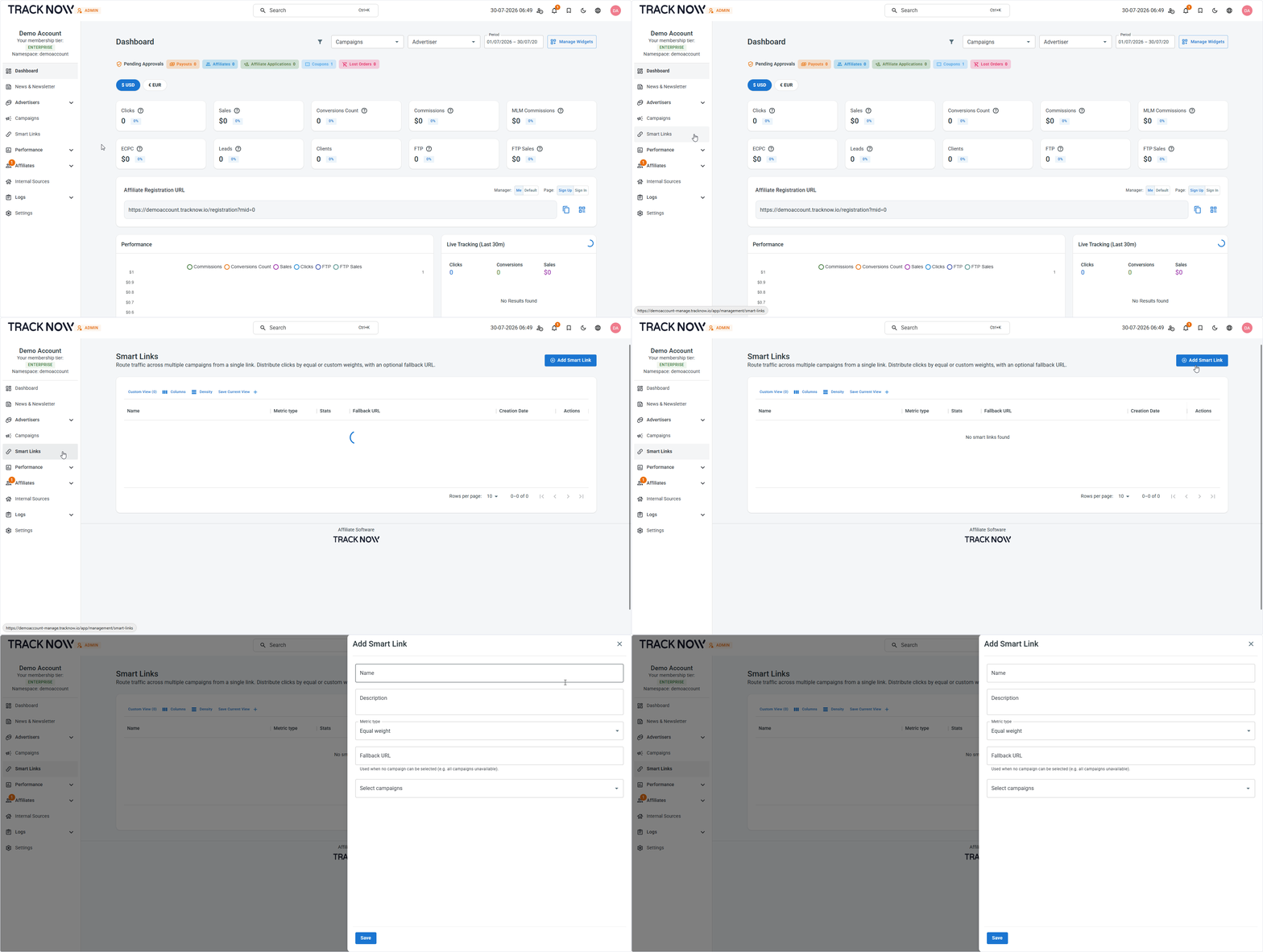
Navigate to:\
**Smart Links** → **Add Smart Link**

<figure><img src="/files/mqgyCVuTrL7pnock2VaP" alt=""><figcaption></figcaption></figure>

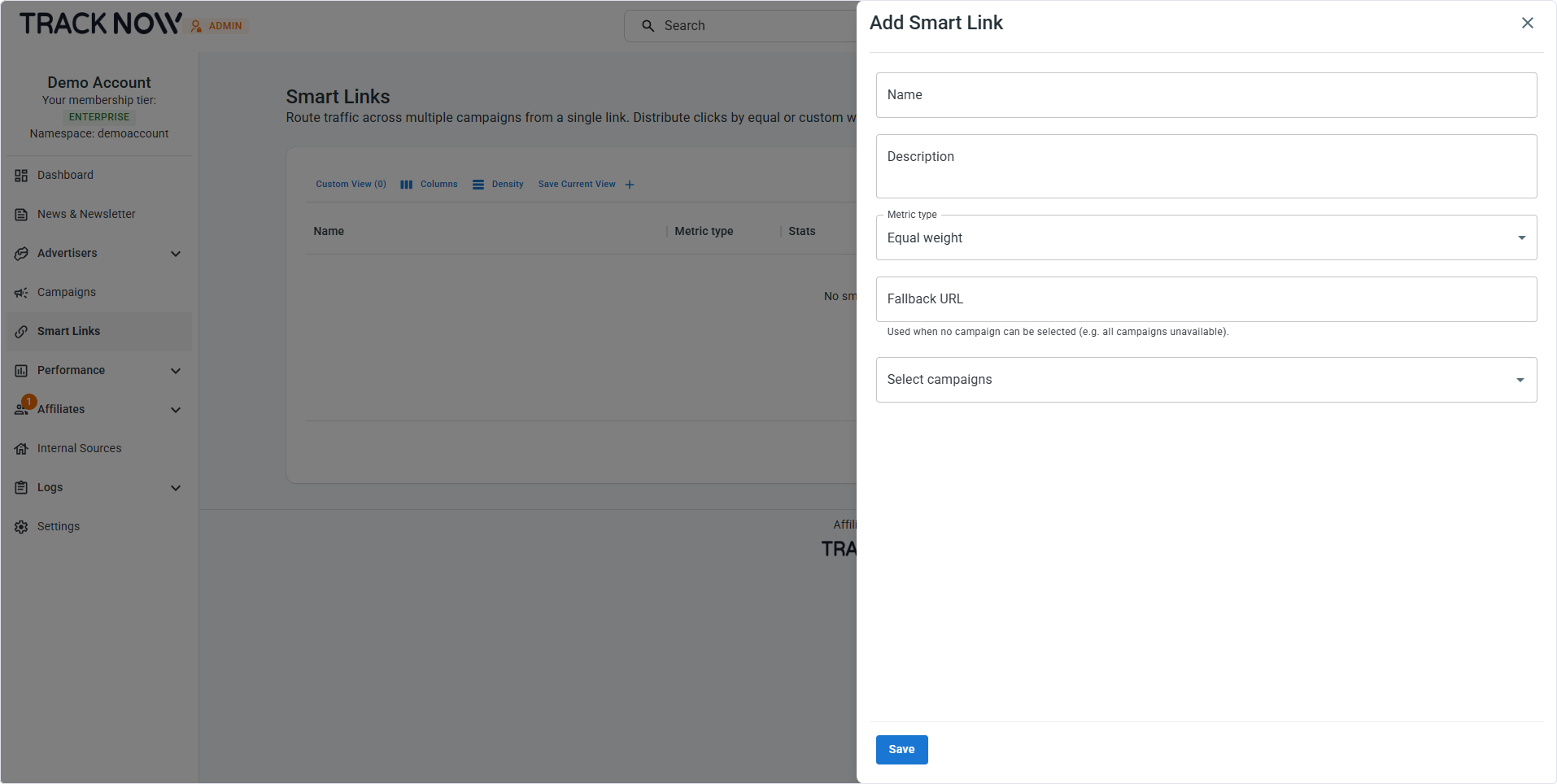
<figure><img src="/files/Qs6hI1boeEQtSVqm9zDj" alt=""><figcaption></figcaption></figure>

<table><thead><tr><th width="253">Field</th><th>Description</th></tr></thead><tbody><tr><td><strong>Name</strong> (Required)</td><td>Give your Smart Link a title (Visible to affiliates)</td></tr><tr><td><strong>Description</strong> (Optional)</td><td>Give your Smart Link a description (Visible to affiliates)</td></tr><tr><td><strong>Metric Type</strong> (Required)</td><td>Choose whether all campaigns receive traffic equally (<strong>Equal wight</strong>) or prioritise specific campaigns (<strong>Custom weight</strong>)</td></tr><tr><td><strong>Fallback URL</strong> (Optional)</td><td>Enter a fallback URL to redirect the user to if none of the selected campaigns are available for the user</td></tr><tr><td><strong>Select Campaigns</strong> (Required)</td><td>Select the campaigns that you wish to include in this smart link </td></tr></tbody></table>

#### Selected Campaigns

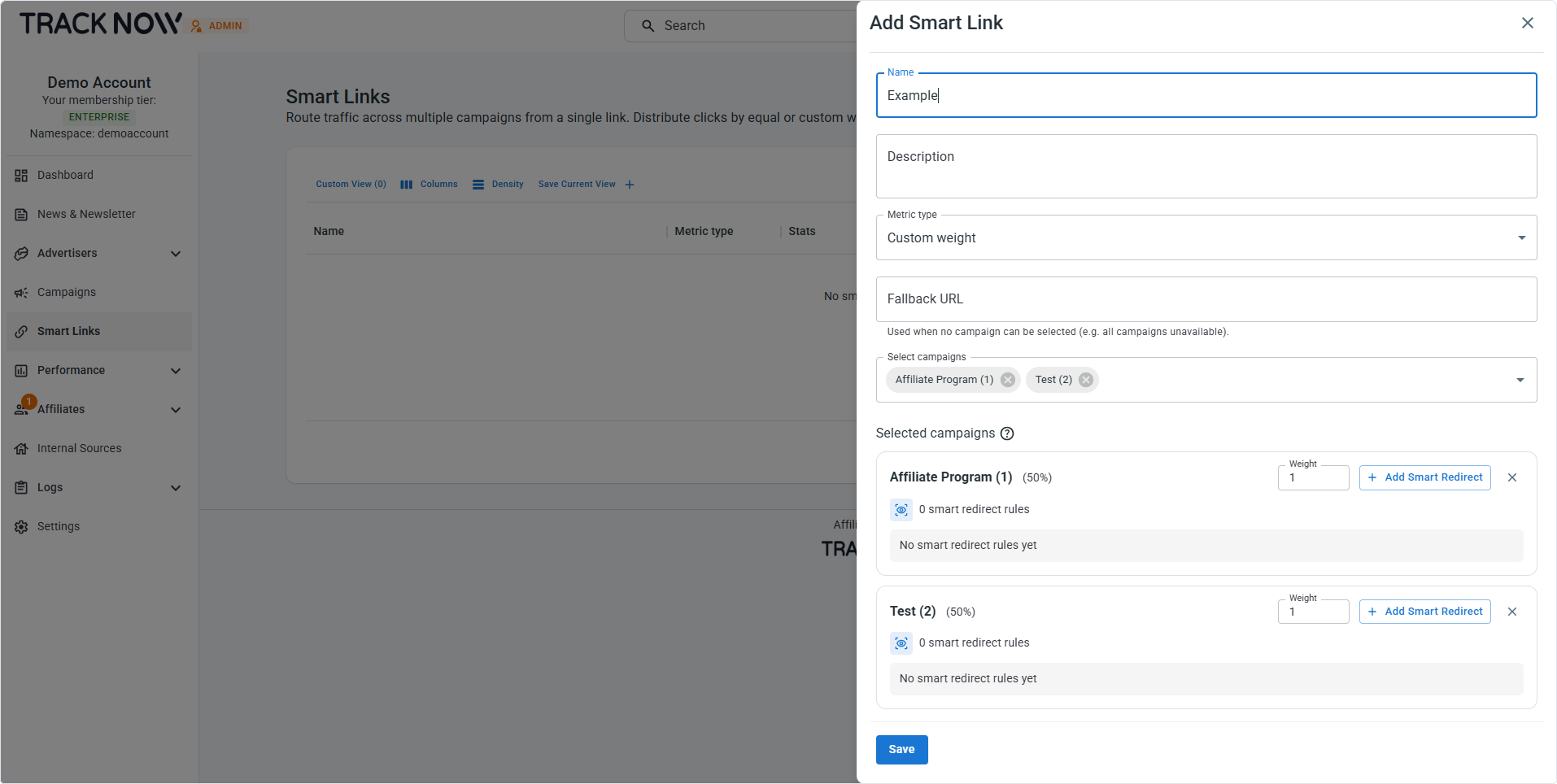
<figure><img src="/files/W7ynPn6xDNUjvyFSYTtq" alt=""><figcaption></figcaption></figure>

Once you've selected the campaigns to include in the Smart Link, you can configure additional settings for each campaign individually.

* **Weight** – This field is only displayed when **Custom Weights** is selected. Assign a weight to each campaign to control how traffic is distributed. Campaigns with higher weights are more likely to be selected as the destination when a user clicks the Smart Link. The estimated percentage of traffic each campaign will receive is displayed next to its name and updates in real time as you adjust the weights.
* **Add Smart Redirect** – Allows you to create campaign-specific Smart Redirect rules directly from the Smart Link configuration page. [Learn more about **Campaign Smart Redirects** here](https://docs.tracknow.io/campaigns/smart-redirect).

***

### Smart Link Flow

```mermaid
flowchart TD

    A([User clicks an affiliate Smart Link])
    B[Tracknow selects a campaign based on the configured weights]
    C{Does the selected campaign have Smart Redirect rules?}
    D{Does the user/affiliate match any Smart Redirect rule?}
    E[Redirect the user to the landing page configured for the matching Smart Redirect rule]
    F[Redirect the user to the campaign's default landing page]

    A --> B
    B --> C
    C -->|Yes| D
    C -->|No| F
    D -->|Yes| E
    D -->|No| F
```

***

### Retrieving an Affilaite Smart Link

#### As a Manager

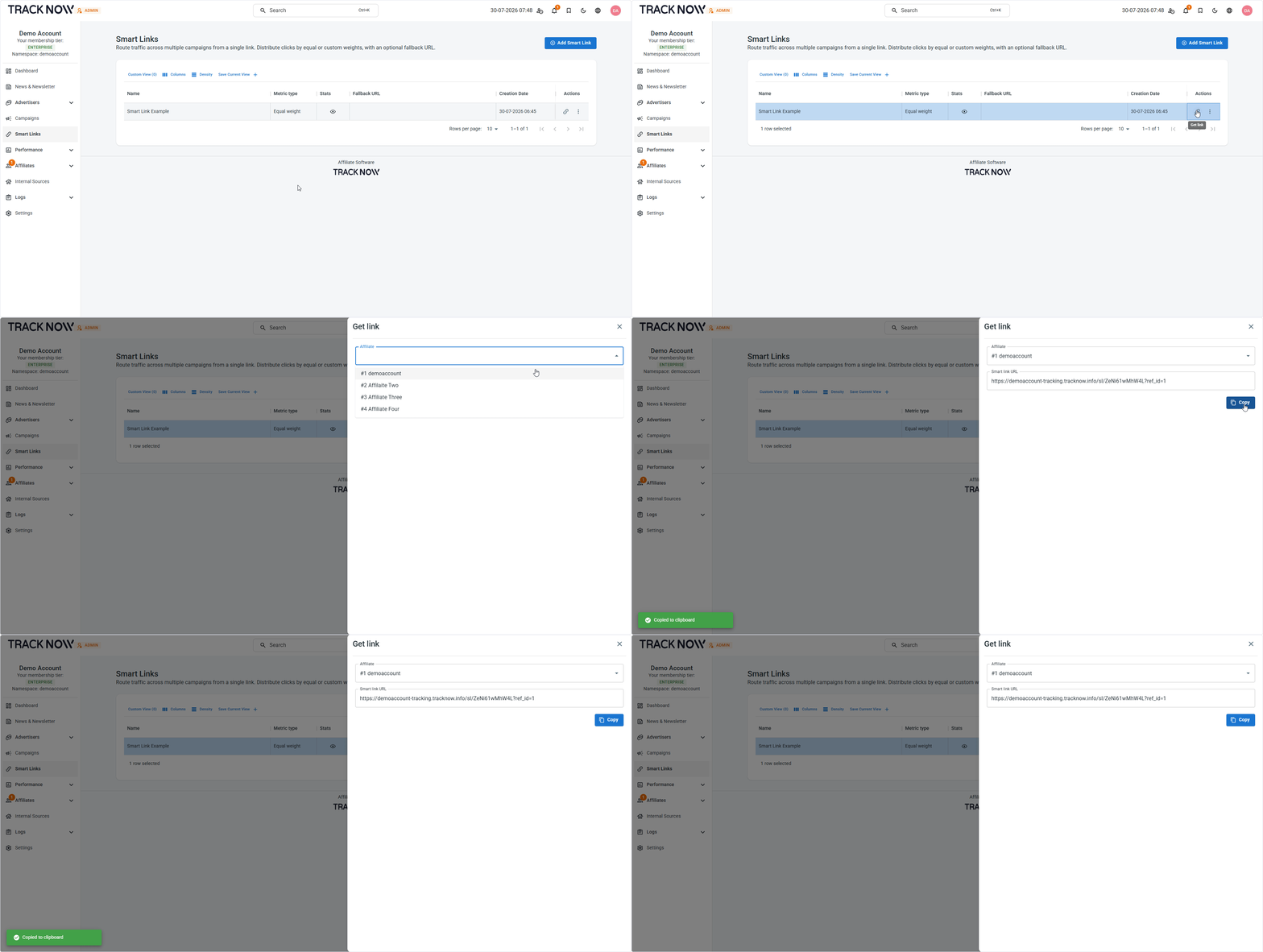
Once you've created a Smart Link, click the **Link** icon in the **Actions** column to select an affiliate and generate their Smart Link.
<figure><img src="/files/1T7WKjhmrpBRi4sqHbWK" alt=""><figcaption></figcaption></figure>

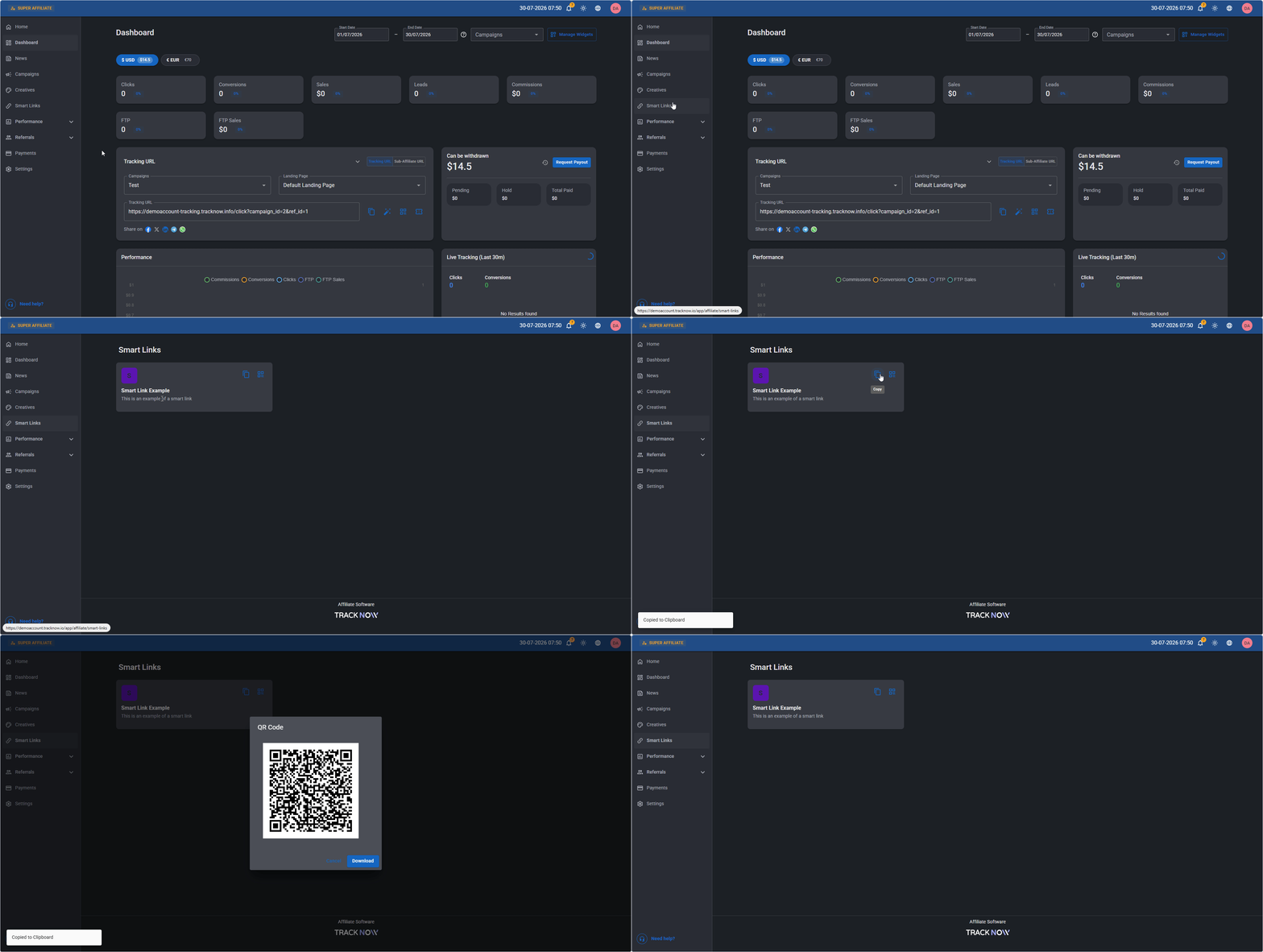
#### As an Affiliate

Navigate to:&#x20;

**Smart Links** screen → **Copy** icon&#x20;

<figure><img src="/files/SnrmLh39K24qPz8I68hV" alt=""><figcaption></figcaption></figure>


---

# Agent Instructions
This documentation is published with GitBook. GitBook is the documentation platform designed so that both humans and AI agents can read, navigate, and reason over technical content effectively. Learn more at gitbook.com.

## Querying This Documentation
If you need additional information that is not directly available in this page, you can query the documentation dynamically by asking a question.

Perform an HTTP GET request on the current page URL with the `ask` query parameter, and the optional `goal` query parameter:

```
GET https://docs.tracknow.io/features/smart-links.md?ask=<question>&goal=<endgoal>
```

`ask` is the immediate question: it should be specific, self-contained, and written in natural language.
`goal` is optional and describes the broader end goal you are ultimately trying to accomplish on behalf of the user. GitBook uses it to tailor the answer towards what is most useful for that goal.

The response will contain a direct answer to the question and relevant excerpts and sources from the documentation.

Use this mechanism when the answer is not explicitly present in the current page, you need clarification or additional context, or you want to retrieve related documentation sections.