# Fraud Protection
Tracknow provides several tools to help you prevent fraudulent conversions and lead reports that could result in unfairly inflated commission amounts.
***
### IP Restriction for Postbacks
{% hint style="info" %}
This tool should only be used if you're sending event data from your website's backend (server-side) and using a static IP address. Enabling IP restriction for other types of integrations may lead to missed conversions and inaccurate tracking
{% endhint %}
Ensures that event data is accepted only from a specified IP address, blocking unauthorized or fraudulent conversion injections from other sources. This is especially useful when sending postbacks from your server using a static IP address.
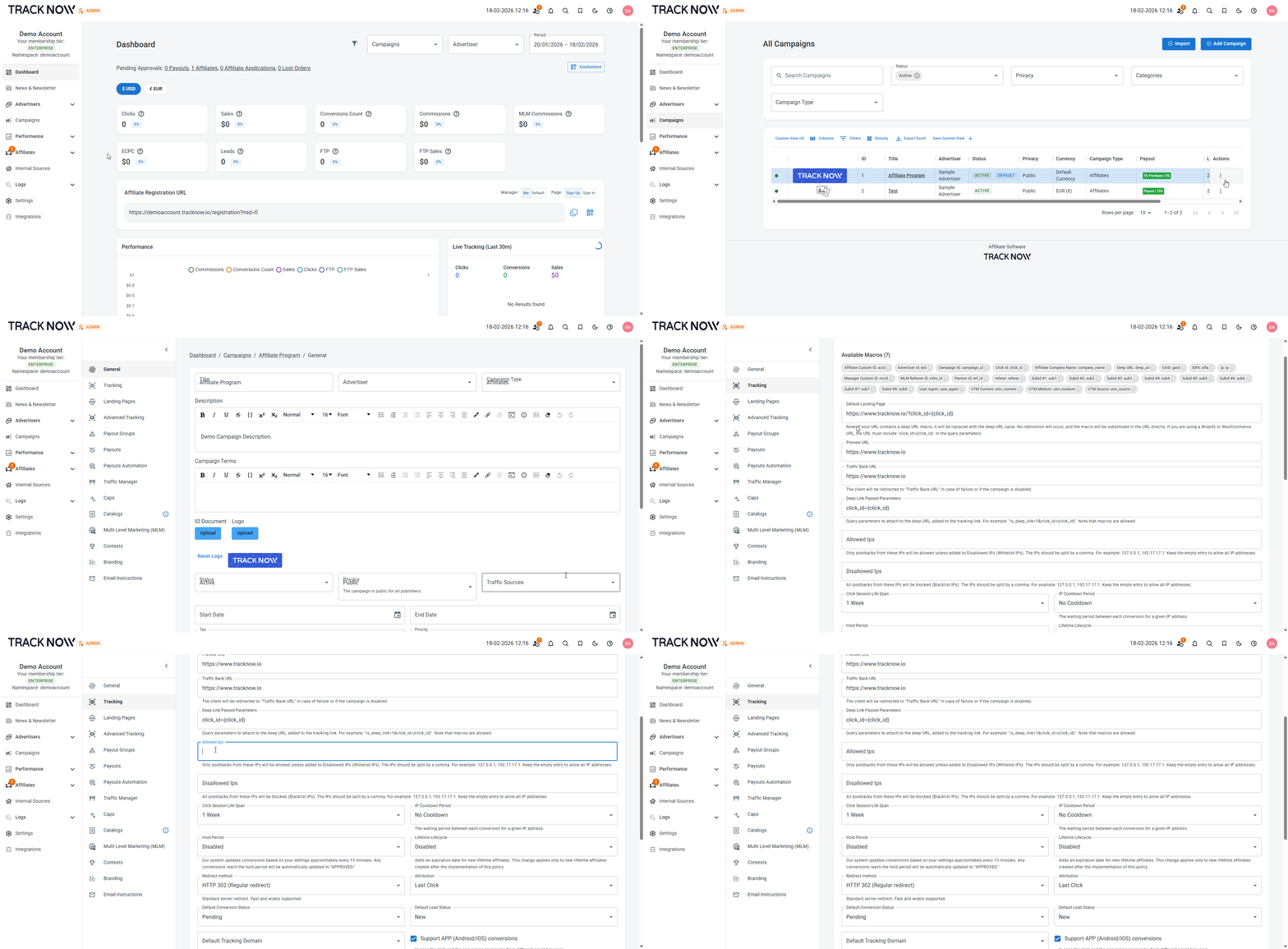
Navigate to **Campaigns** → Locate the relevant campaign → click the three-dot icon under the **Actions** column → **Edit** → **Tracking** tab → Enter the relevant IP address in the **Allowed IPs** field
You can also use the **Disallowed IPs** field to block postback from specific IPs.
***
### Fraud Score
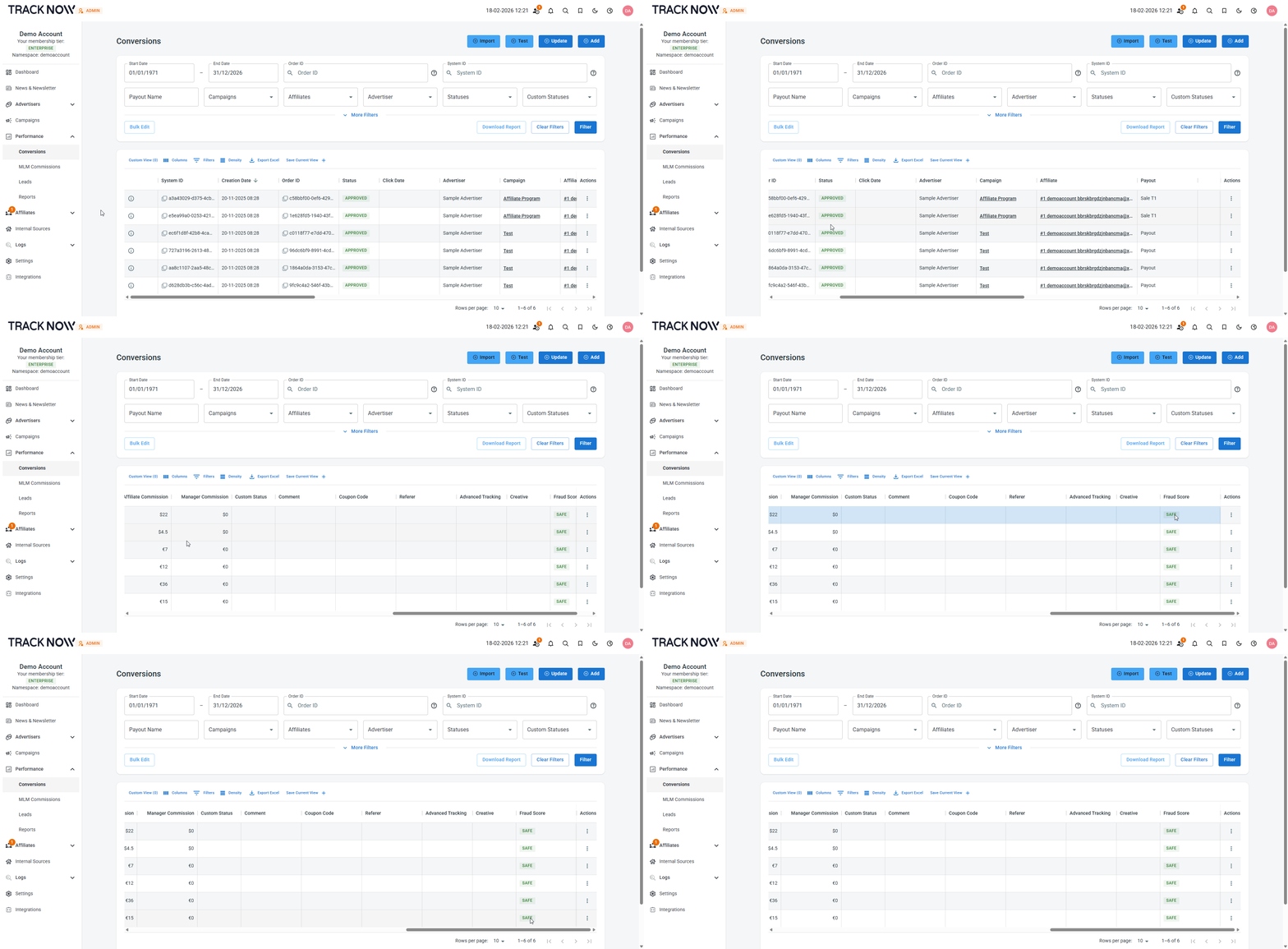
Each conversion on the **Conversions** screen has a **Fraud Score** assigned by our system based on various metrics such as:
* VPN Usage
* Proxy Usage
* Time period between the initial click and the postback being sent
* Number of postbacks sent from the same client IP
***
### Fraud Score Automation
Conversions can be assigned with one of the following scores:
* Safe
* Low Risk
* Medium Risk
* High Risk
Tracknow allows you to automatically set a conversion's status to Denied or Revision based on the Fraud score.
**Denied conversions** are shown to the affiliates and the commissions from those conversions will not become available to the affiliate.
**Revision Conversions** are hidden from the affiliate but shown to the manager , allowing him to review those conversions and decide wether to approve or deny them manually.
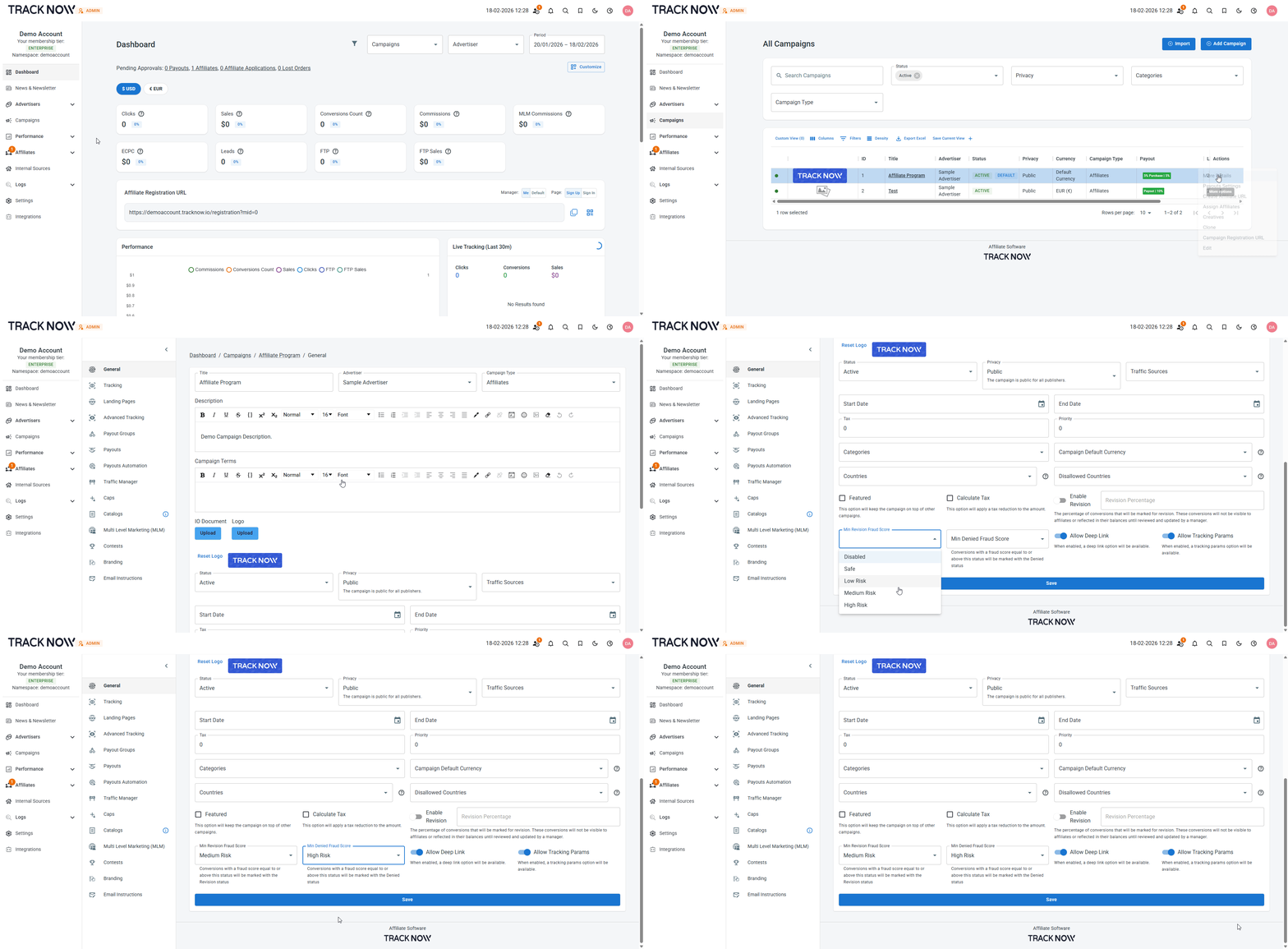
Navigate to **Campaigns** → Locate the relevant campaign → click the three-dot icon under the **Actions** column → **Edit** → **General** tab
1. Select the minimum fraud score from which the revision status will be applied
2. Select the minimum fraud score from which the denied status will be applied
3. **Save**
***
### Default Conversion Status
Conversions have several Statuses:
1. **Approved** – Once a conversion is marked as approved, the corresponding commission becomes available for the affiliate to request a payout.
2. **Hold** – A temporary status that keeps the conversion on hold for a predefined time period. If no action is taken during this period, the conversion will be automatically approved once the time expires. (Visible to the affiliate)
3. **Pending** - Commissions for pending conversions are not available yet to the corresponding affiliates, requires manual approval. (Visible to the affiliate)
4. **Denied** - Affiliates will not receive commissions for denied conversions.
5. **Revision** - Commissions for conversions under revision are not available to the corresponding affiliates, requires manual approval. (Conversions are not visible to the affiliate)
6. **Test** - A status for conversions that were made as tests - commissions will not be available for the affiliate. (Visible to the affiliate)
You can select what would be the default status applied to new conversions.
Navigate to **Campaigns** → Locate the relevant campaign → click the three-dot icon under the **Actions** column → **Edit** → **Tracking** tab → Select the **Default Conversion Status** → **Save**