Payment Methods
Payment methods define how affiliates can receive payments from your company.
Each payment method includes a form that collects the information required to process the payment. For example, a Bank Transfer payment method may require affiliates to provide their bank account number, branch details, and other relevant banking information.
When requesting a payment from their available balance, affiliates select a payment method, provide the required details, and submit the request. Managers can then use these details to process the payment.
Adding Payment Methods
To configure the payment methods available to affiliates:
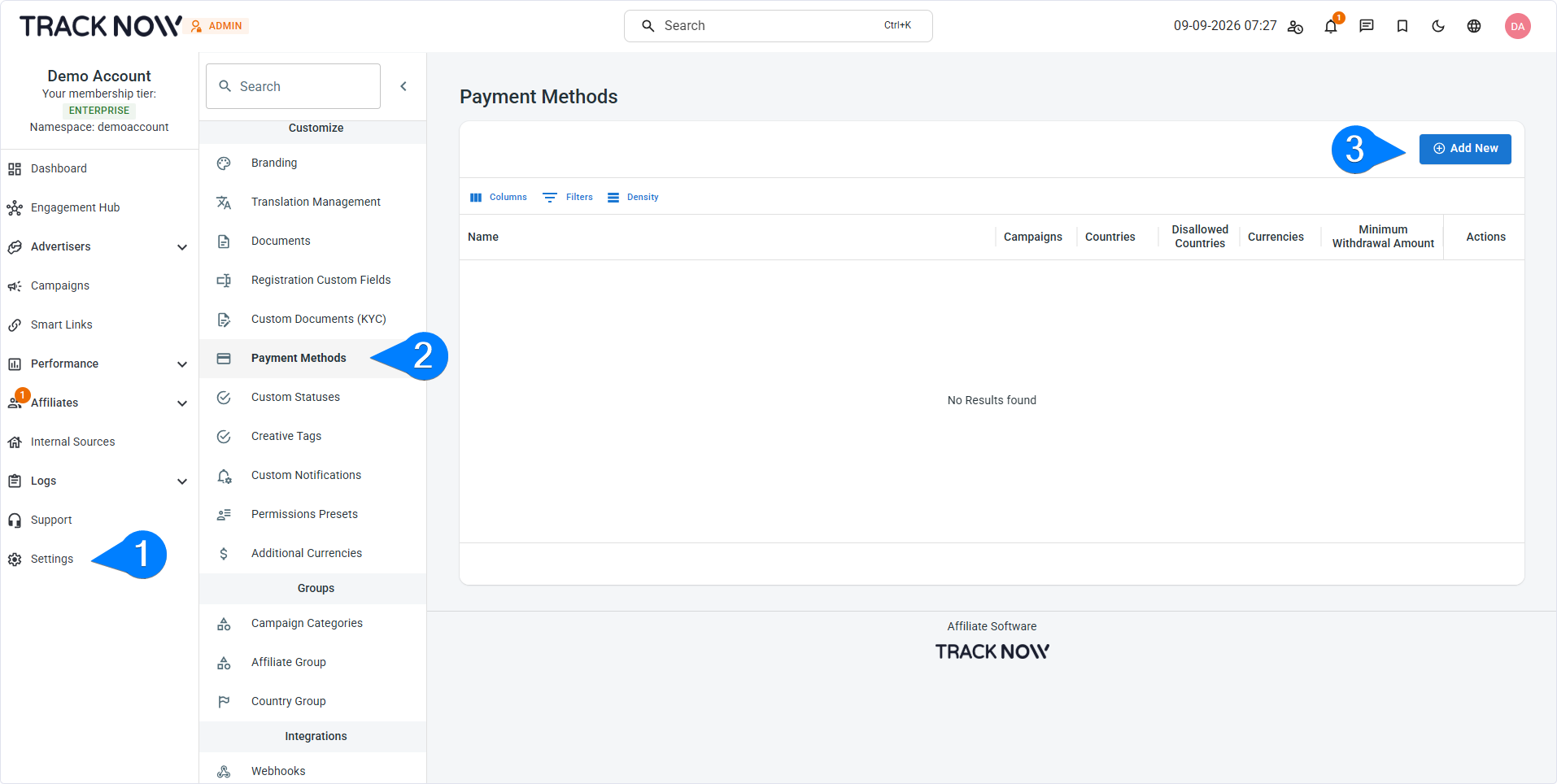
- Go to Settings → Payment Methods
- Click Add New
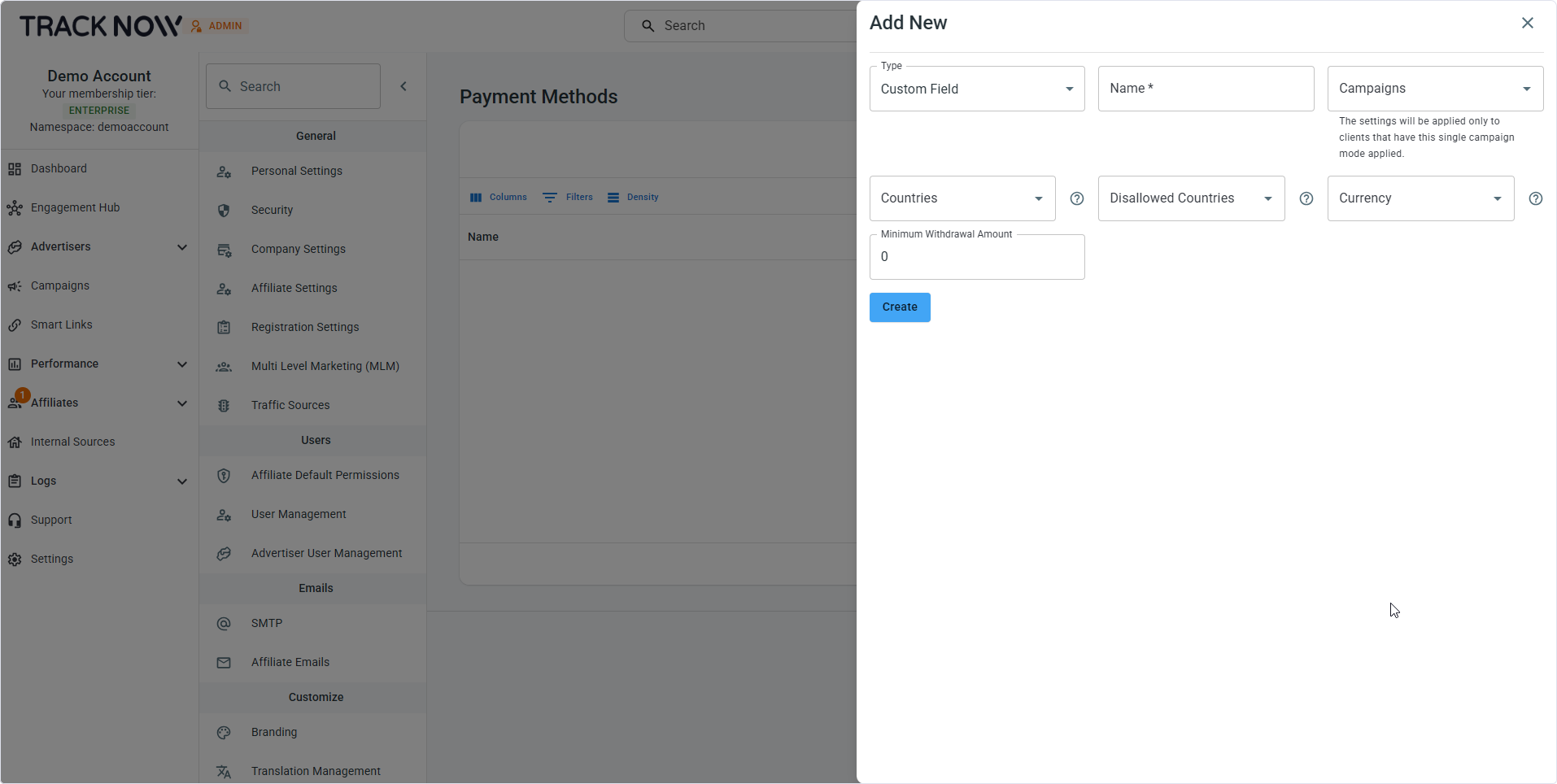
| Field | Description |
|---|---|
| Type (Required) | Tracknow provides ready-made forms for several popular payment methods. If your payment method is not available as a preset, select Custom Form to create and configure your own payment form. |
| Name (Required) | Enter the payment method name that will be displayed to affiliates. |
| Campaigns (Optional) | Limit this payment method to specific campaigns. Only affiliates with Single Campaign Mode enabled for a selected campaign will have access to this payment method. |
| Countries (Optional) | Limit this payment method to specific countries. Only affiliates from the selected countries will have access to this payment method. |
| Disallowed Countries (Optional) | Hide this payment method from specific countries. Affiliates from the selected countries will not have access to this payment method. |
| Currency (Optional) | Select the currencies supported by this payment method if your dashboard uses a multi-currency setup. |
| Minimum Withdrawal Amount (Optional) | Set the minimum available balance an affiliate must have to request a payment using this payment method. |
Custom Form Example
In this example, we'll create a custom form for a Crypto payment method that collects the following details from affiliates:
- Currency - Select field
- Network - Select field
- Wallet Address - Text field
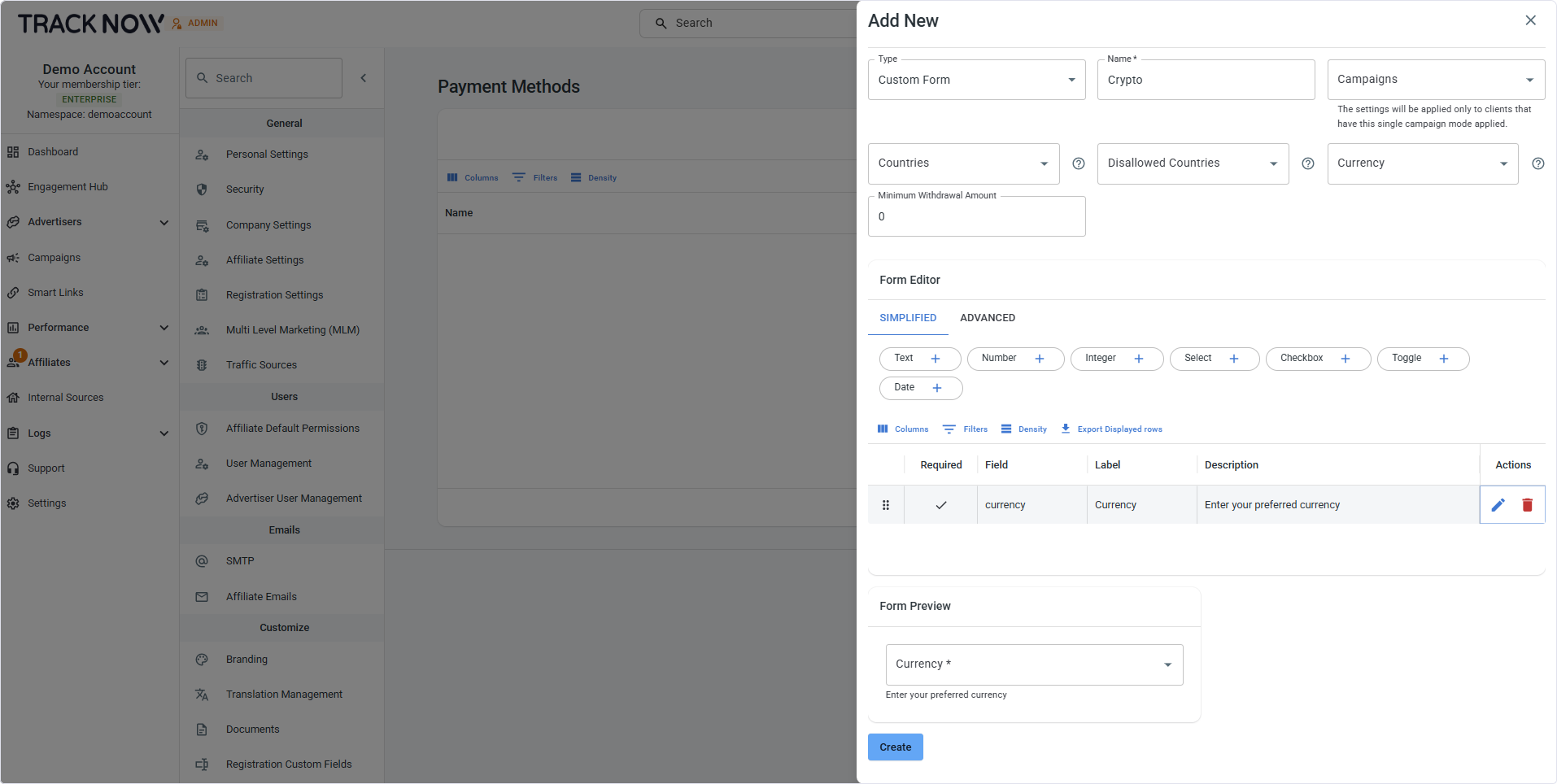
1. Add the Currency Field
Click the + icon next to the Select field type to add a new select field.
Click the pen icon to edit the field and configure the following:
- Field: Enter a field value, such as
currency. - Label: Enter the name displayed to affiliates, such as
Currency. - Required: Enable this option to make the field mandatory.
- Description: Optionally add helper text that will appear below the field.
Next, add the currencies affiliates can select:
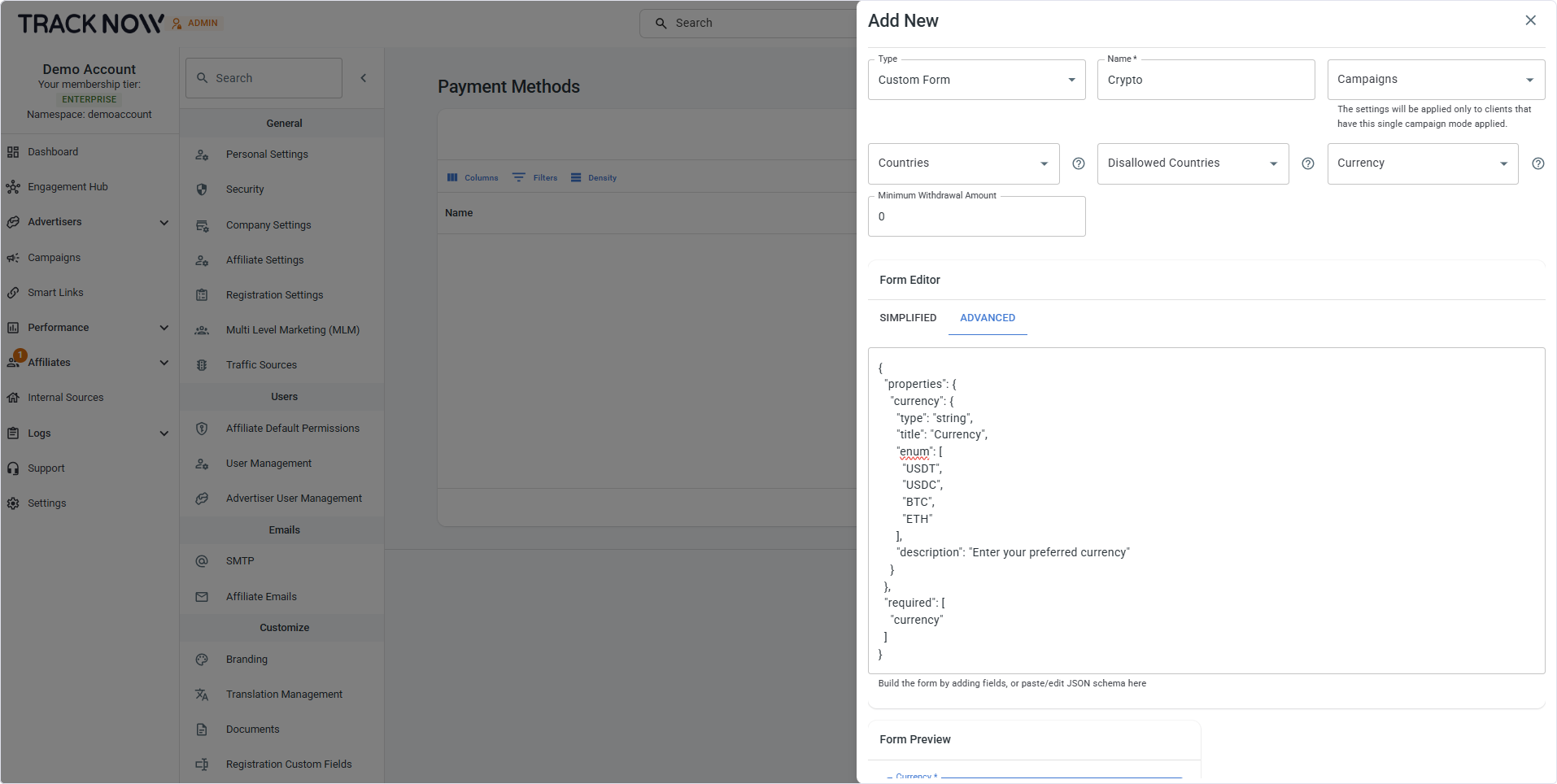
- Switch the form editor to Advanced View.
- Locate the
enumarray for the Currency field. - Add the supported currencies as options. For this example, we'll use
USDT,USDC,BTC, andETH. - Switch back to Simplified View when finished.
2. Add the Network Field
Add another Select field for the payment network.
Click the pen icon and configure its Field, Label, Description, and whether the field is Required, just as you did for the Currency field.
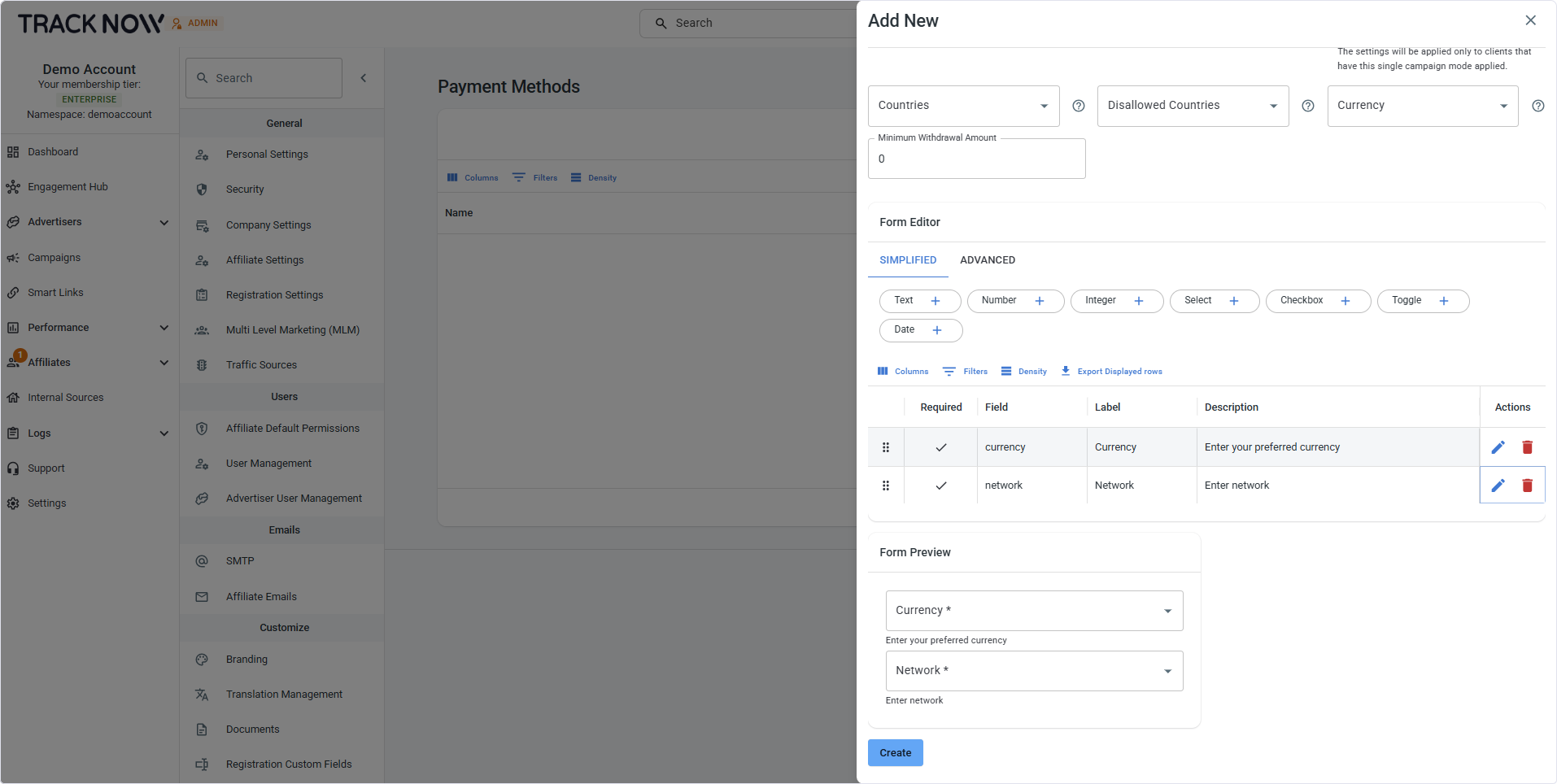
To add the available networks:
- Switch to Advanced View.
- Locate the
enumarray for the Network field. - Add the supported network options. For this example, we'll use
TRC20 (Tron),ERC20 (Ethereum),BEP20 (BNB Smart Chain),Polygon, andSolana. - Switch back to Simplified View when finished.
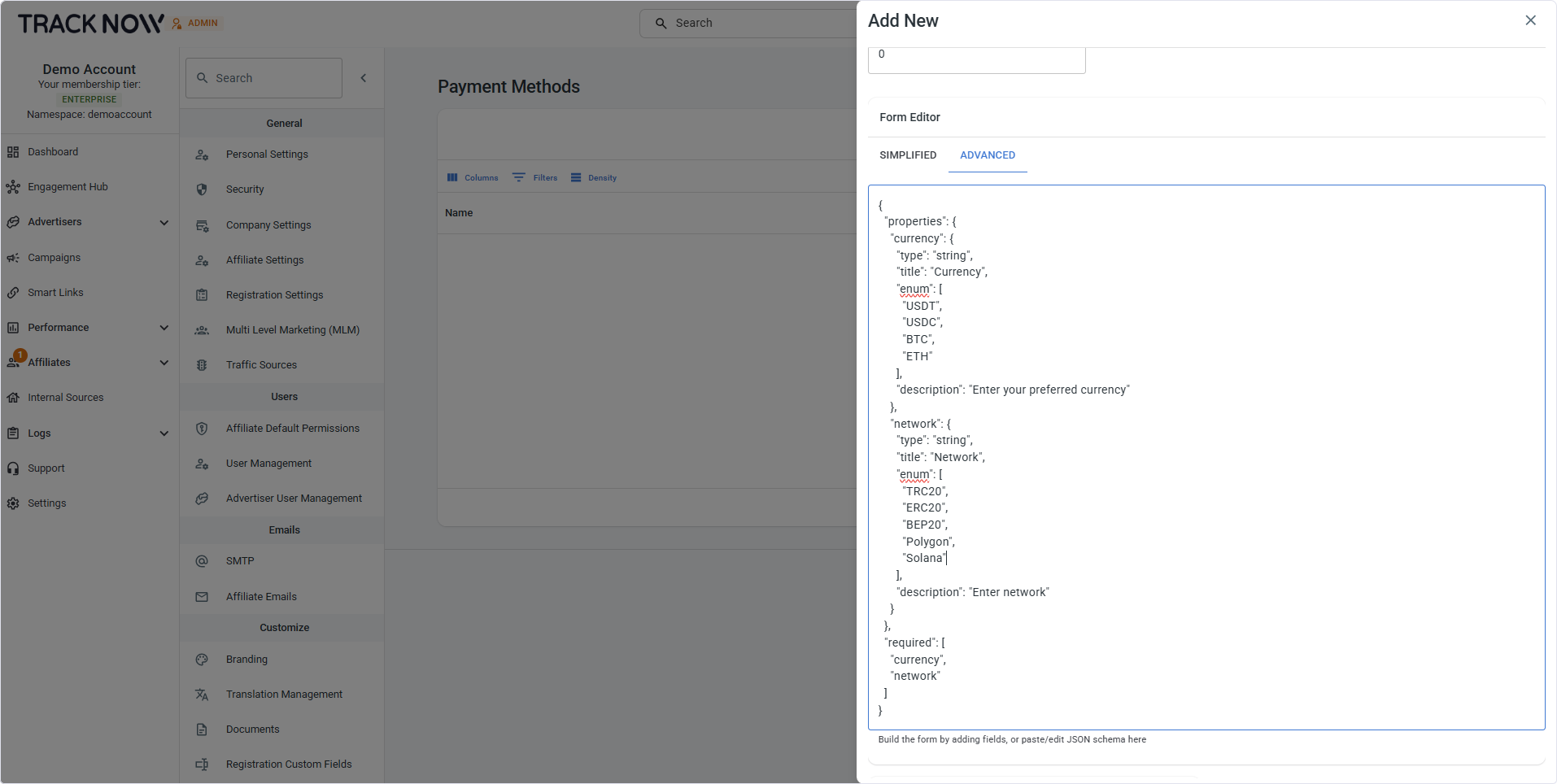
3. Add the Wallet Address Field
Click the + icon next to the Text field type to add a text input for the affiliate's wallet address.
Click the pen icon and configure its Field, Label, Description, and whether the field is Required, just as you did for the Currency field.
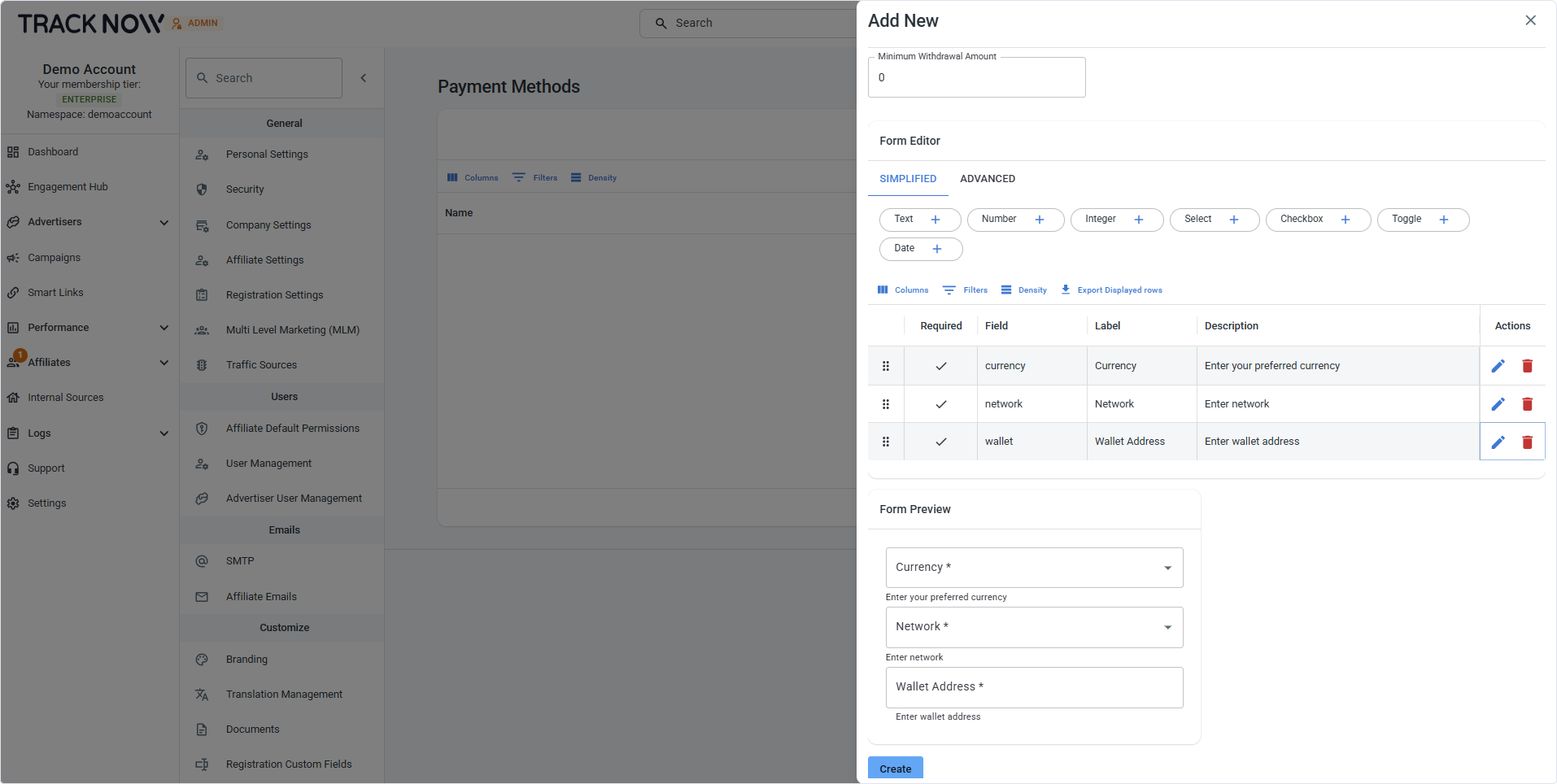
Your custom Crypto payment form is now configured to collect the affiliate's Currency, Network, and Wallet Address when they use this payment method.
Editing an Existing Payment Method
To edit an existing payment method click the pen icon under the Actions column for the relevant payment method.
Deleting an Existing Payment Method
To delete an existing payment method click the trash icon under the Actions column for the relevant payment method.