Affiliate Statuses
Depending on the affiliate onboarding flow, affiliates may progress through several statuses. Each status represents a specific stage in the onboarding process, as described below.
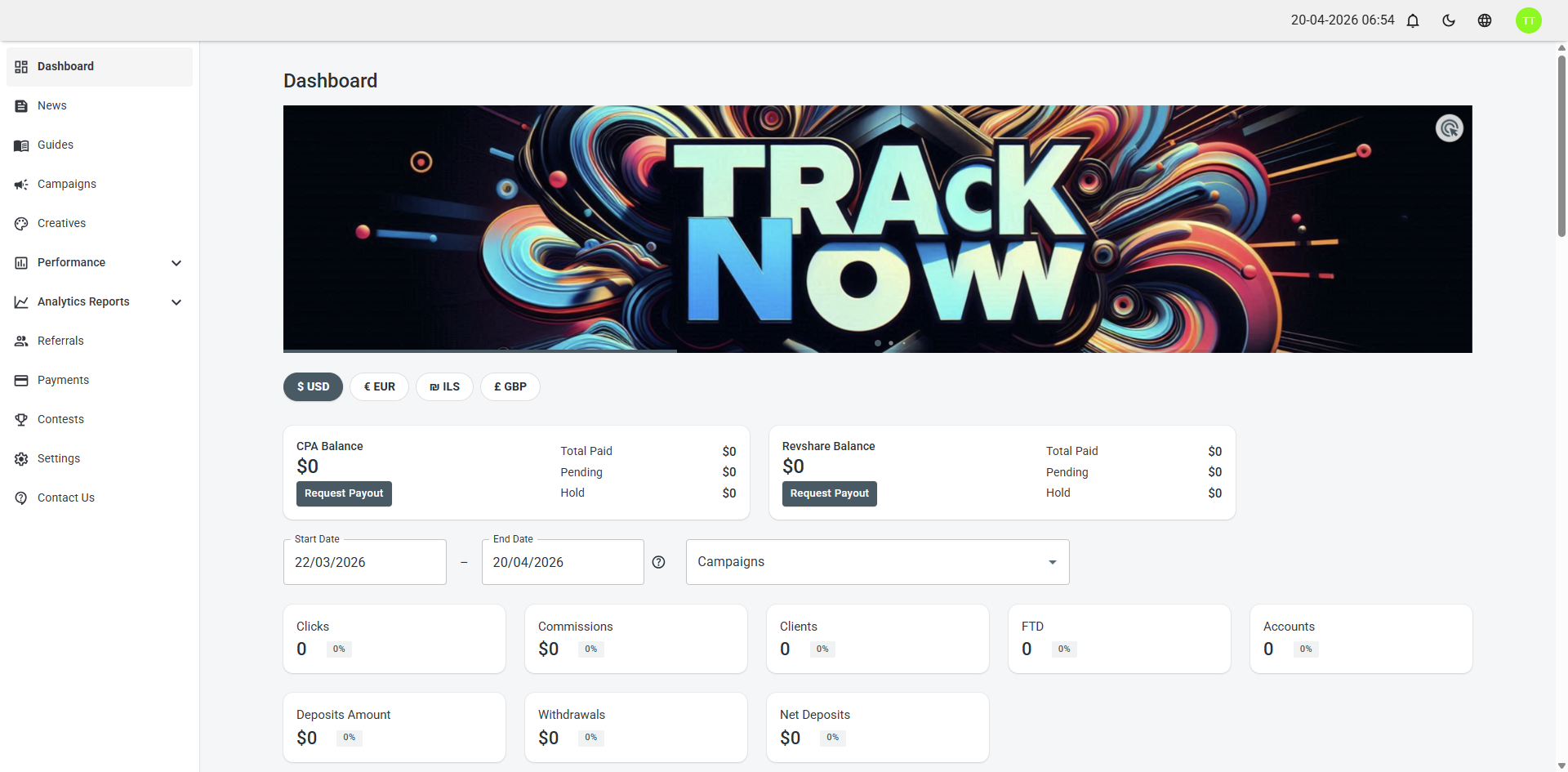
Approved
The user has been approved as an affiliate.
- Can login
- Has access to his full portal (according to his permissions)
Rejected
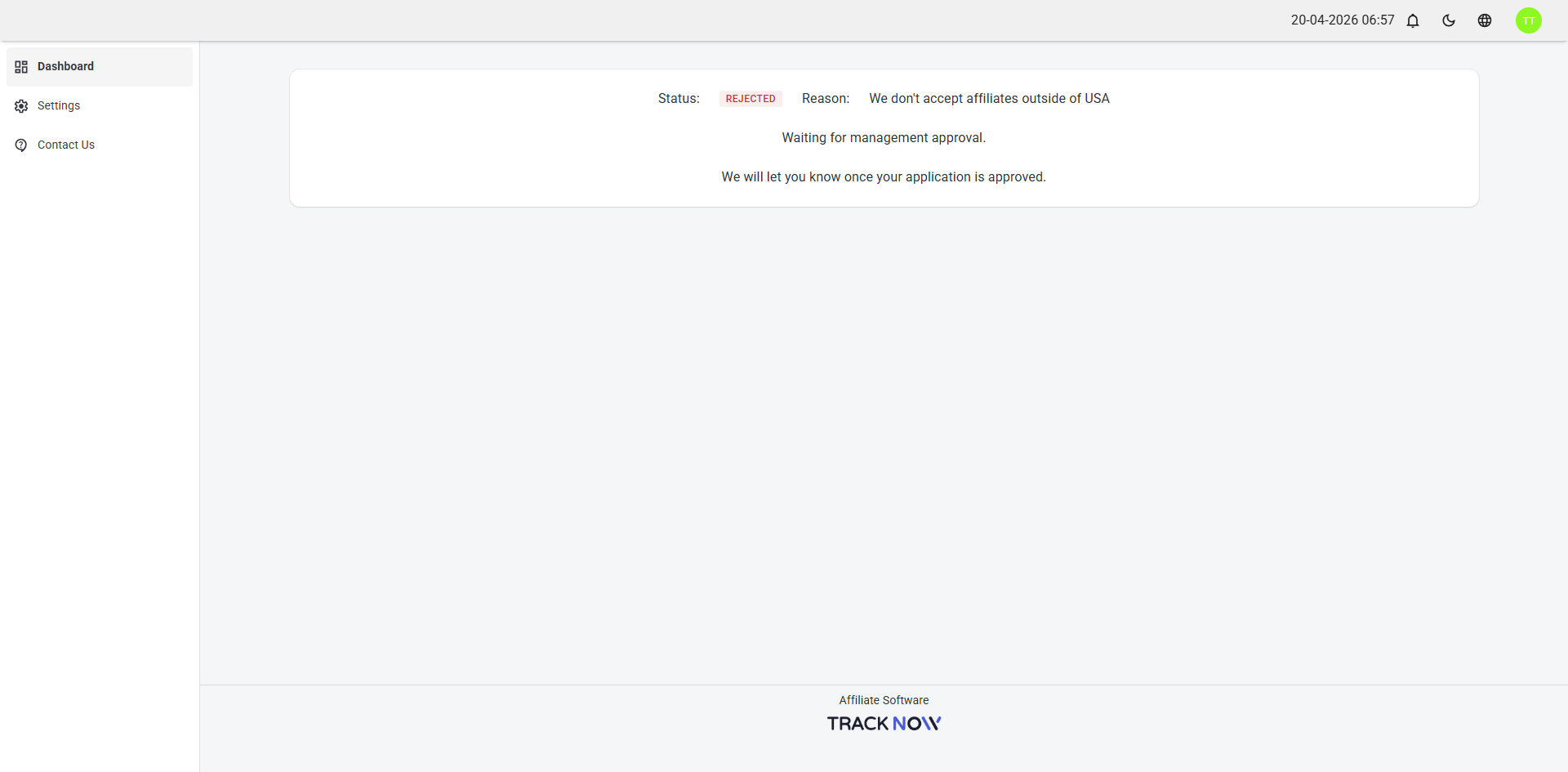
The user has been rejected as an affiliate.
- Can login
- Doesn't have access to the full portal.
- A message will be displayed indicating that the user has been rejected, along with the reason for the rejection.
Pending
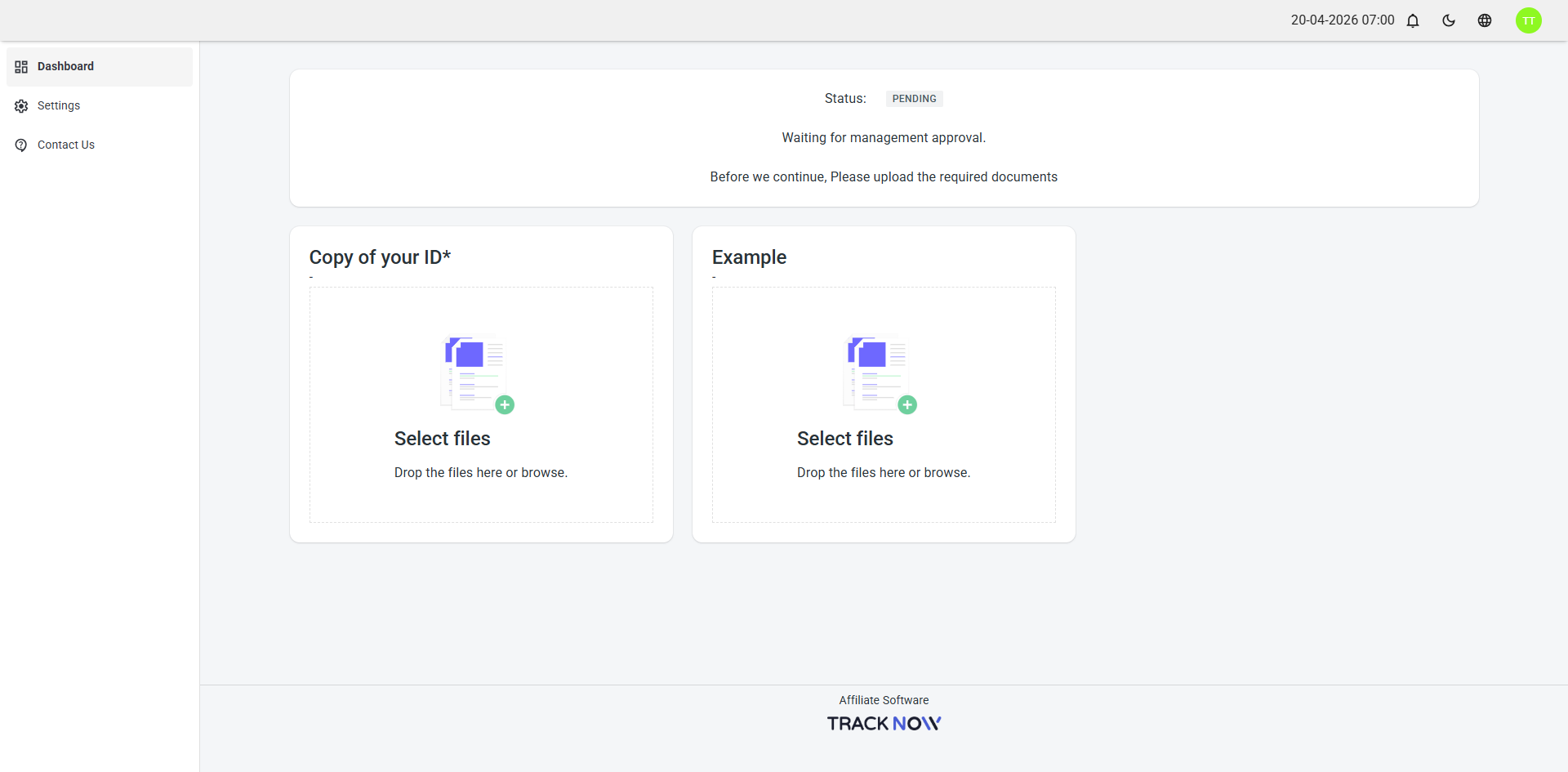
The user registered as an affiliate but needs to upload a document or complete a required step.
- Can login
- Doesn't have access to the full portal.
- A message will be displayed indicating that the user is pending, along with any required documents that need to be uploaded.
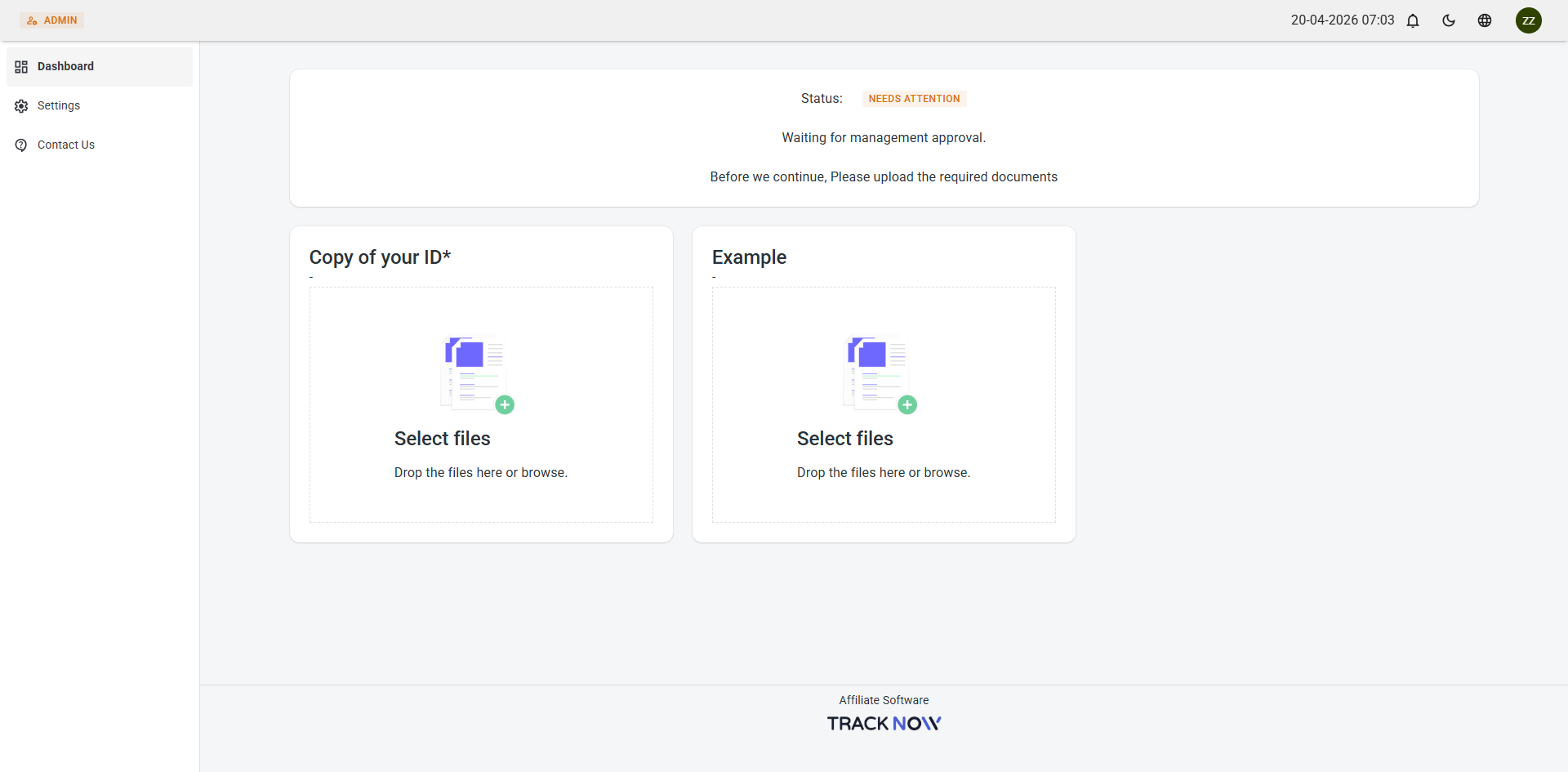
Needs Attention
The user has uploaded the required documents and is now awaiting manager review and final approval of their status.
- Can login
- Doesn't have access to the full portal.
- A message will be displayed indicating that the user status.
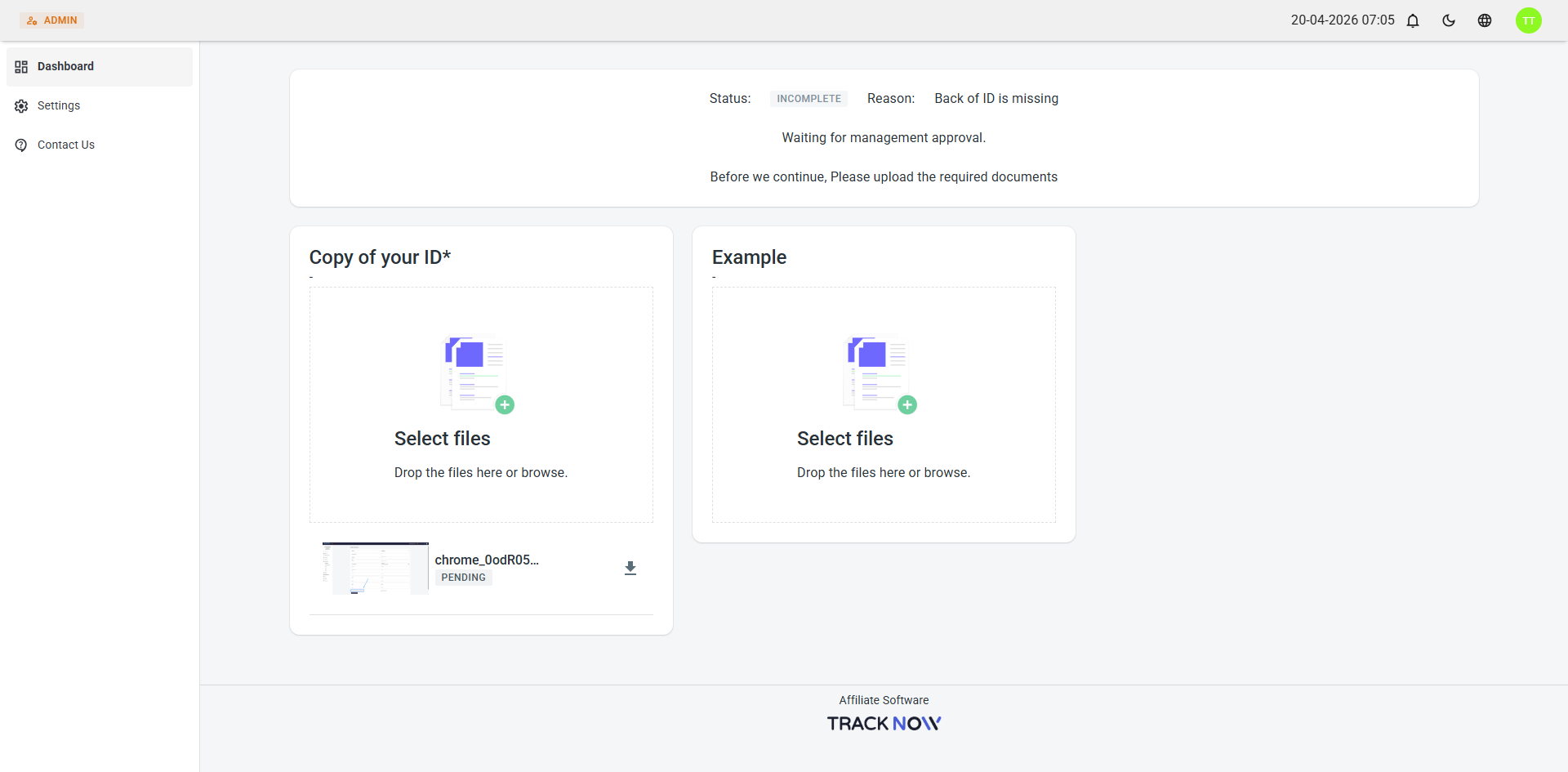
Incomplete
The user has uploaded incomplete or invalid documents and needs to fix it.
- Can login
- Doesn't have access to the full portal.
- A message will be displayed indicating that the user status is Incomplete and managers can add more context in the status reason field.
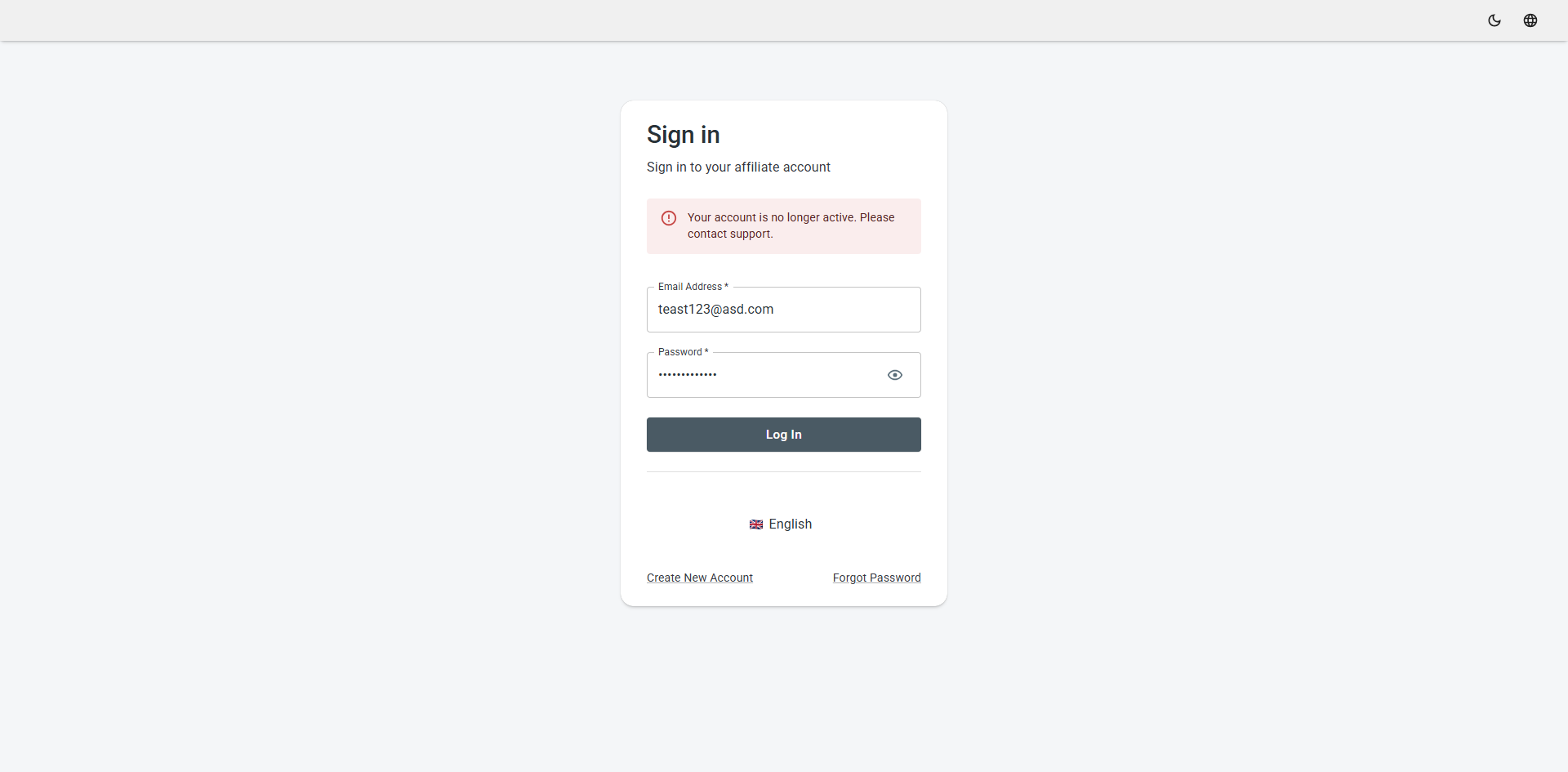
Archived
The user has been archived.
- Cannot login
- When attempting to login a message will be shown "our account is no longer active. Please contact support."
Changing an Affiliate's Status
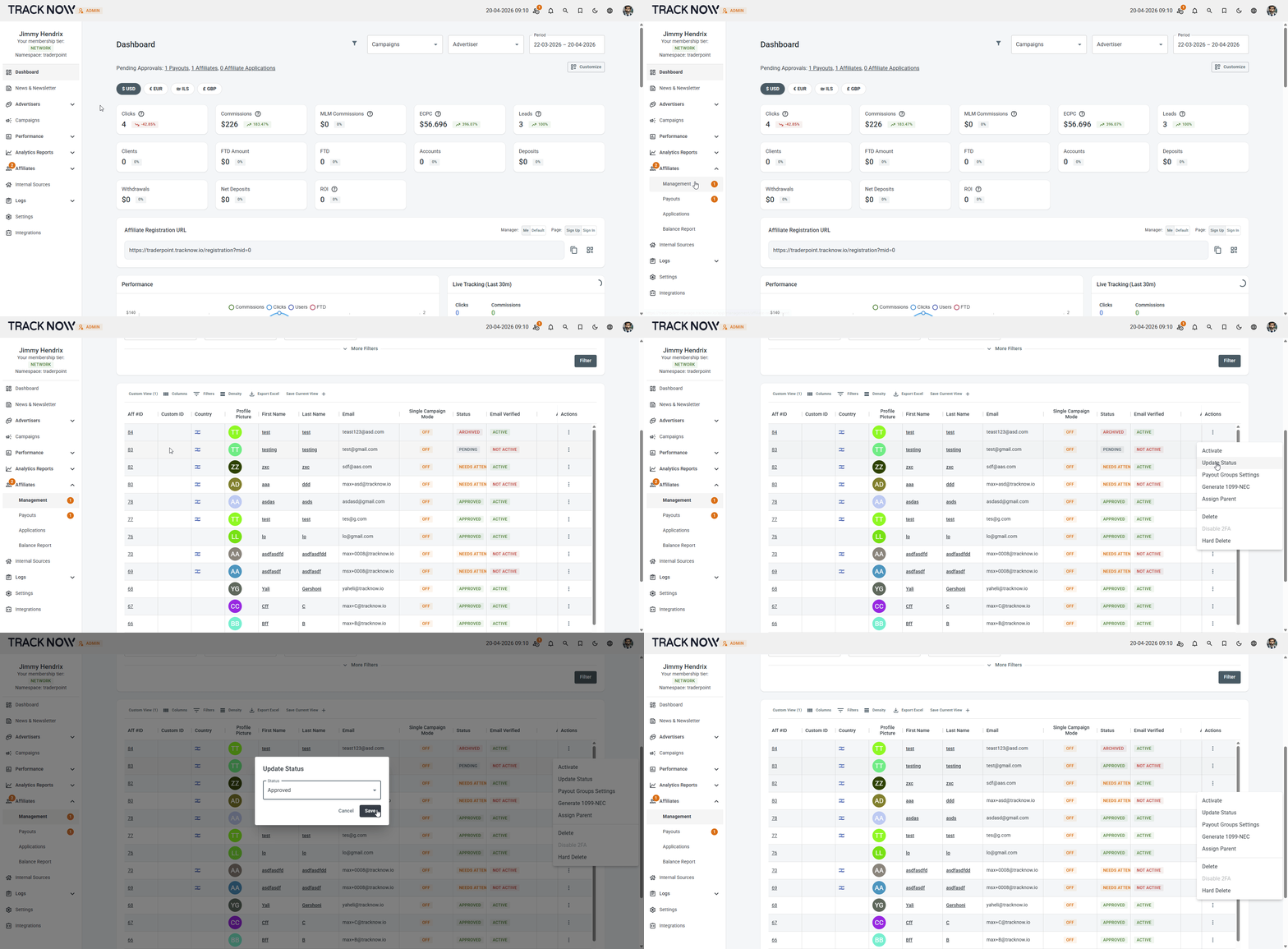
Navigate to Affiliates → Management → Locate the relevant affiliate → Click the three-dot icon under the Action column → Update Status